# Claim Activities
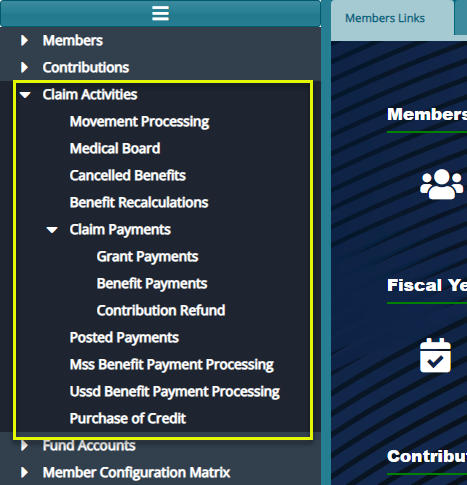
The Claim Activities menu list links to activities related to benefits claim processing. To start an activity, click the appropriate link from the enclosed drop-down menu to open the respective window as shown in the screenshot below:
# Movement Processing
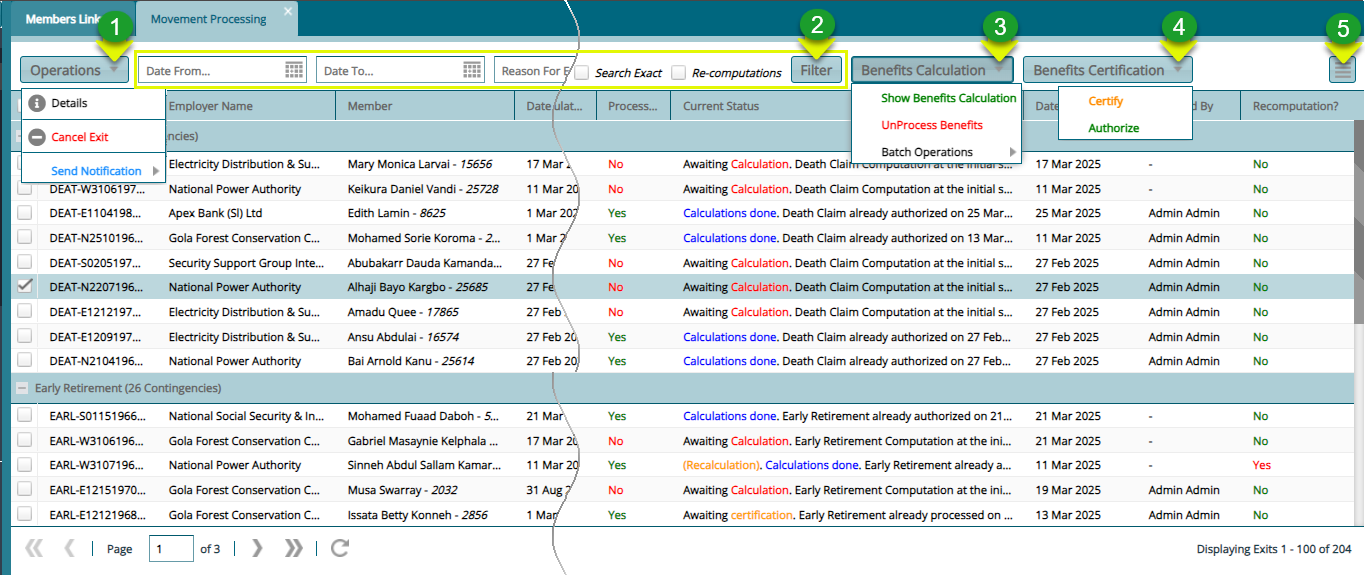
The Movement Processing window lists all the claims that have been initiated by the members register. From this window, benefits for claim records are calculated and transactions are certified. See screenshot below:
Action
Click label 1 drop-down menu to select an operation to initiate e.g. viewing the details of a selected record.
Click label 2 text fields and select dates to filter records by date.
Click label 3 drop-down menu to initiate benefits calculation among other activities.
Click label 4 drop-down menu to certify and authorize a claim whose benefits have been calculated.
Click label 7 button to view more details of a selected claim record.
# Medical Board
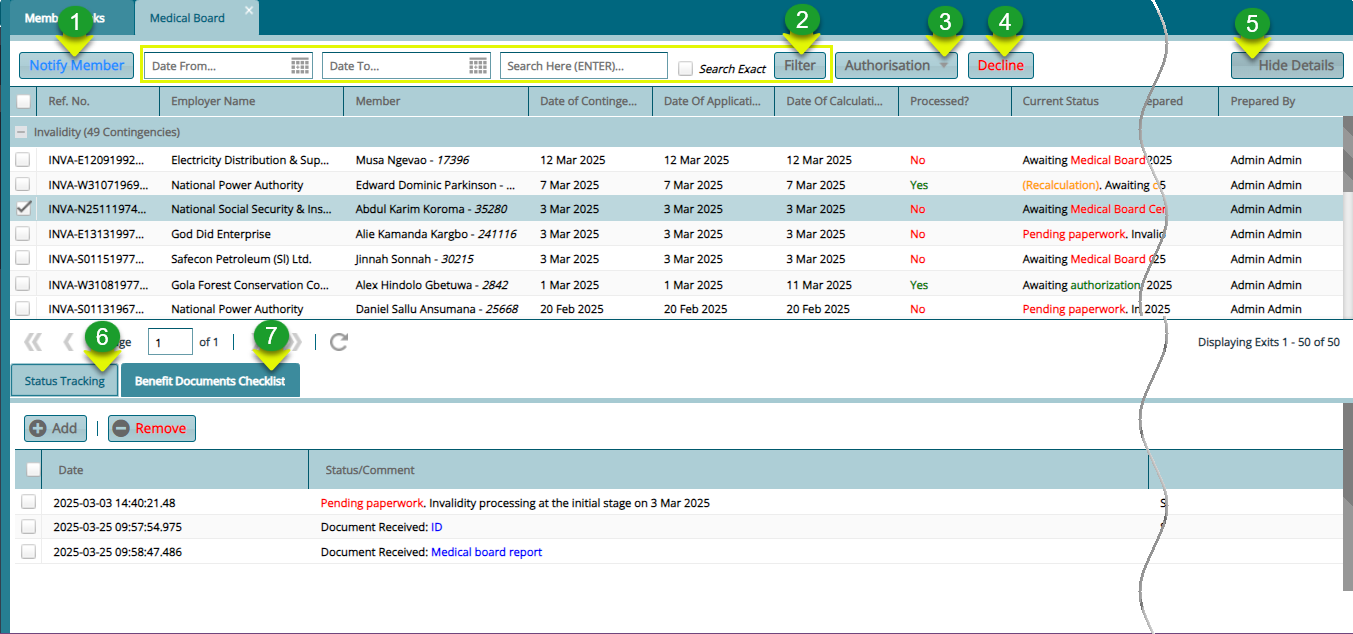
The Medical Board Register lists all the benefits invalidity claims that have been processed for benefits payment. The transactions listed here await paperwork and medical board approval before payment. They are also subjected to the certification process. See screenshot below:
Action
Click label 1 button to load a dialog box for typing the message to notify the member about the claim progress.
Click label 2 text fields and select dates to filter records by date.
Click label 3 drop-down menu to certify and authorize a transaction.
Click label 4 button to terminate a transaction.
Click label 5 button to hide the extra details section on the lower part of the window.
Click label 6 tab to track the status of a selected record.
Click label 7 tab see benefits documents checklist.
Clicking Benefits Documents Checklist tab will load a section as shown below. Clicking the Receive Documents button will load a dialog window to aid in uploading the required document.

# Cancelled Benefits
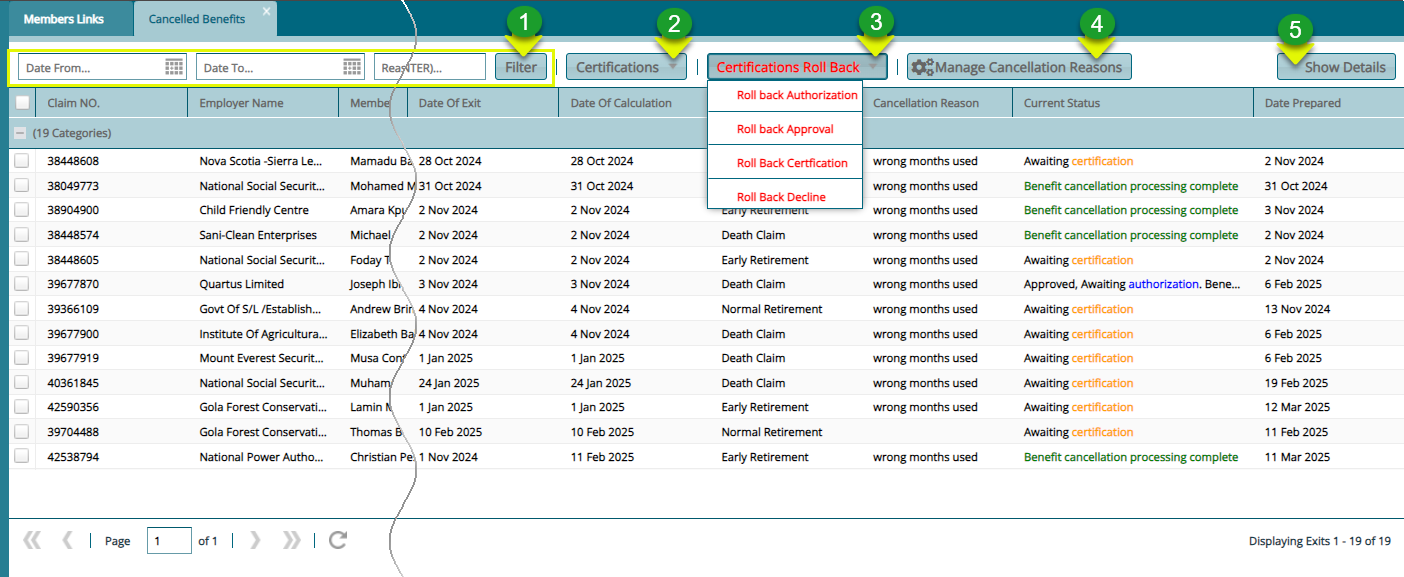
The Cancelled Benefits window lists all the calculated benefits that were later cancelled for a number of reasons. From this window the certification process can be rolled back and these rollbacks certified.See screenshot below:
Action
Click label 1 text fields and select dates to filter records by date.
Click label 2 drop-down menu to certify and authorize a transaction.
Click label 3 drop-down menu to carry out rollback actions.
Click label 4 button to open a window that aids the management of reasons for cancellation.
Click label 5 button to view more details for a selected record.
# Benefits Recalculation
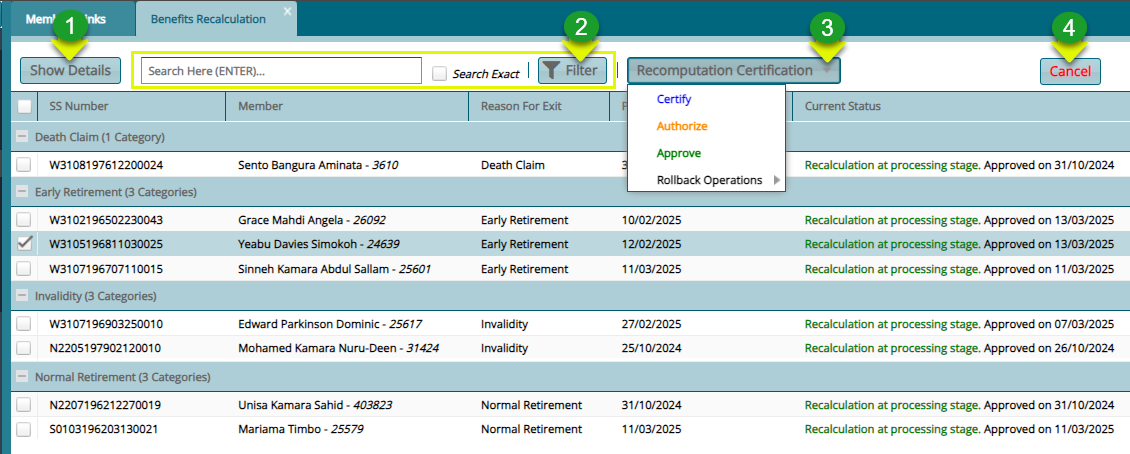
The Benefits Recalculation window lists all the benefit transactions that have undergone recalculation. See screenshot below:
Action
Click label 1 button to load a window showing comprehensive details of a selected transaction.
Click label 2 button to filter the records based on the keywords entered into the preceding search box.
Click label 3 drop-down menu to certify, approve or rollback benefits recalculation process.
Click label 4 button to disapprove a transaction recalculation.
# Claim Payments
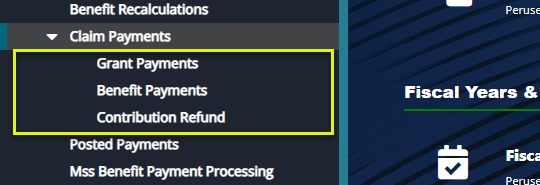
After claim benefits are calculated, all transaction records are pushed to different registers such as Grants, Benefits or Contributions refund Registers. From the left side pane shown below, these registers can be accessed:
# Grants Payments
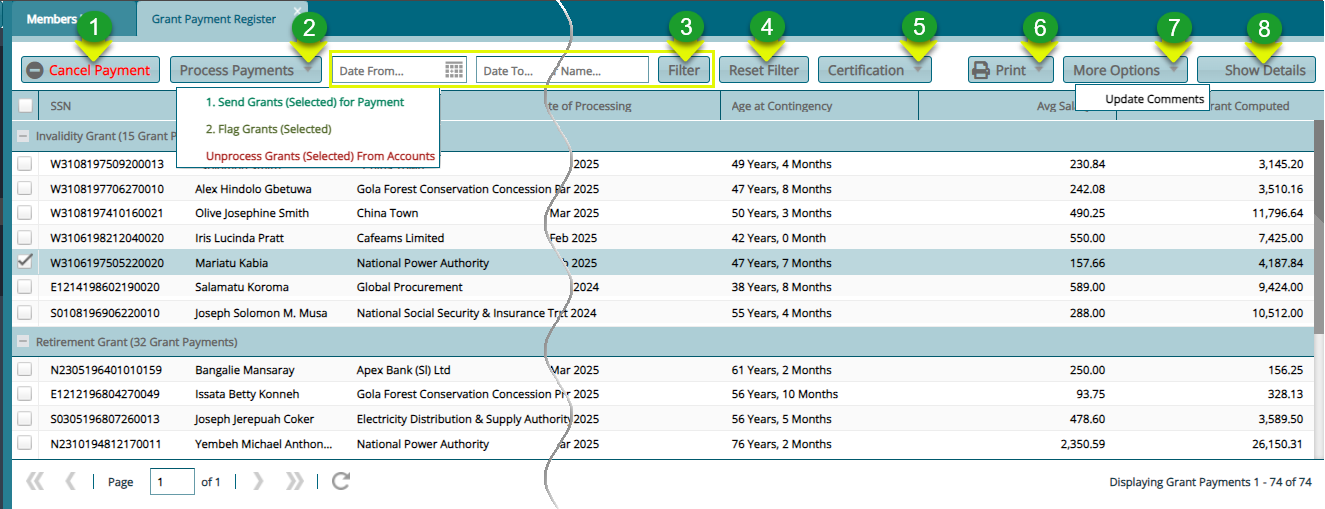
The Grant Payment Register displays all the claim benefits paid in lump sum: Different actions can be taken from this window such as sending selected records for payment. See screenshot below:
Action
Click label 1 button to revoke a selected grant transaction.
Click label 2 drop-down menu to send a grant record for payment among other options.
Click label 3 button to filter the records based on set search parameters.
Click label 4 button to repopulate the records in the grid table.
Click label 5 drop-down menu to certify and approve the grant ready for payment.
Click label 6 drop-down menu to view a print copy of benefits payments.
Click label 7 drop-down menu to write comments on the grant payment transaction.
Click label 8 button to expand a lower section with tabs for more details of a selected record.
# Benefit Payments
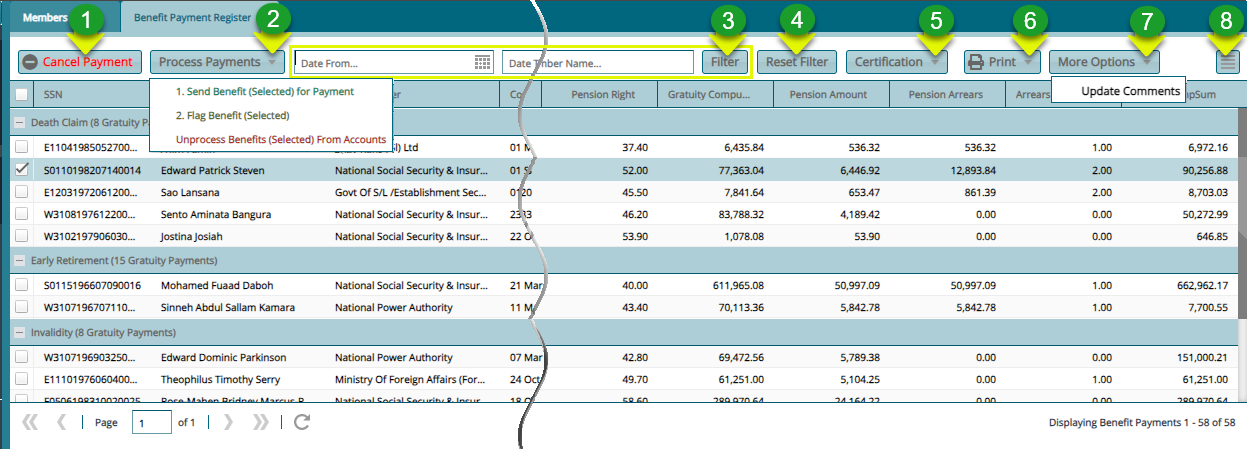
The Benefits Payment Register displays all the pensionable claim benefits payable. Different actions can be taken from this window such as sending selected records for payment. See screenshot below:
Action
Click label 1 button to revoke a selected grant transaction.
Click label 2 drop-down menu to send a transaction for payment among other options.
Click label 3 button to filter the records based on set search parameters.
Click label 4 button to repopulate the records in the grid table.
Click label 5 drop-down menu to certify and approve the grant ready for payment.
Click label 6 drop-down menu to view a print copy of benefits payments.
Click label 7 drop-down menu to write comments on the grant payment transaction.
Click label 8 button to expand a lower section with tabs for more details of a selected record.
# Contribution Refund
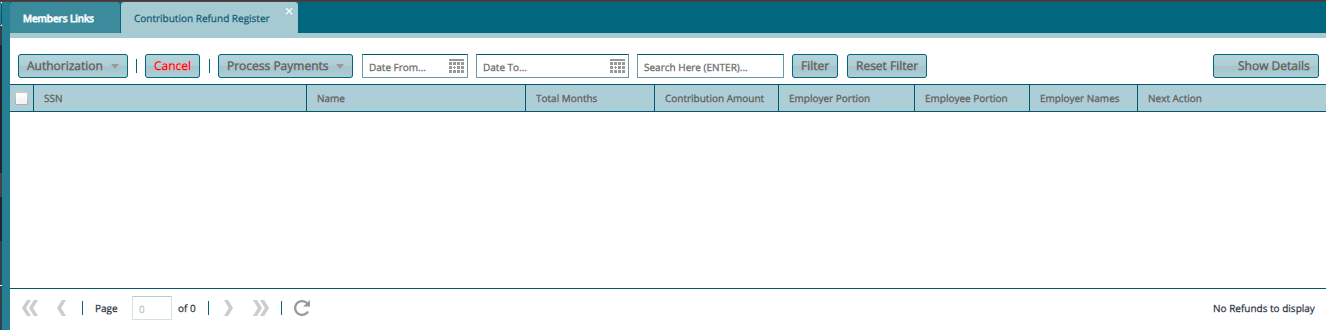
The Contributions Refund Register displays all the refundable contribution transactions. Different actions can be taken from this window such as sending selected records for payment. See screenshot below:
# Claim Processing
Normal Retirement Claim
Step 1: Claim Initiating Process
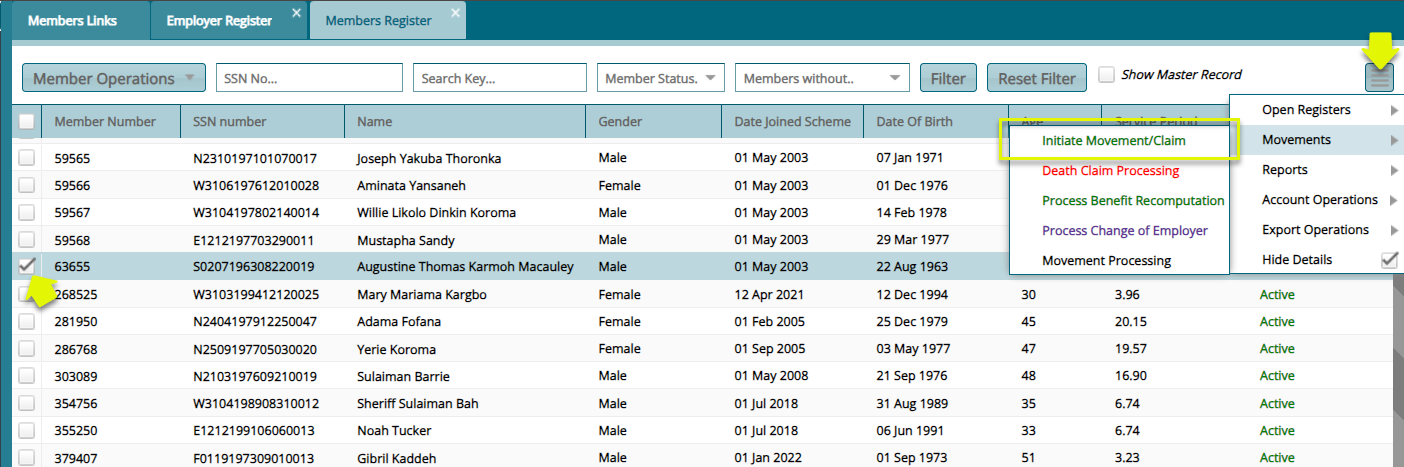
To initiate a claim for a member, navigate to the Members Register and select the Member record from the list. Click the Movements tab to access the Initiate Movement/Claim tab as shown in the following sample screenshot:
Note
For a members claim to be proceeded successfully the following should be done:
All mandatory documents to support a claim must be uploaded into the system.
The bank details of the claimant should be filled.
Beneficiaries details are captured.
Step 2: Selecting Reason for Exit
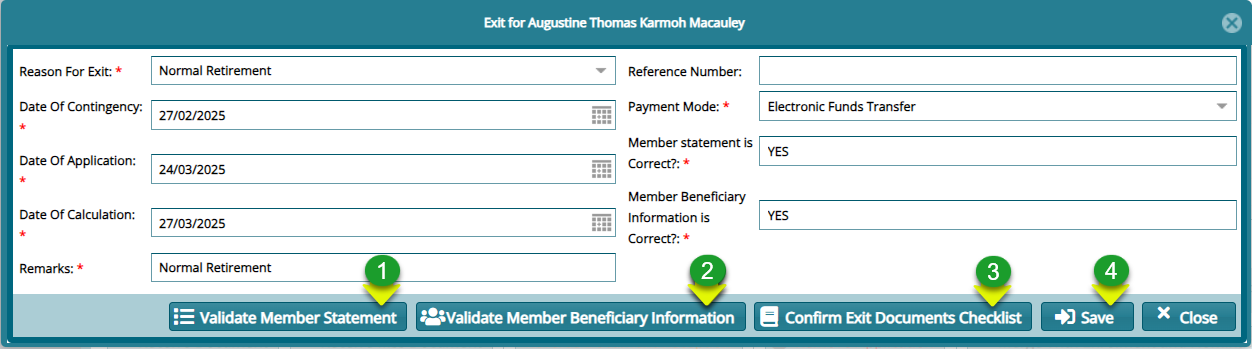
Clicking the Initiate Movement/Claim link will load an exit form where parameters for processing the claims are set. Set the Reason for Exit among other details as shown below:
Action
Click label 1 button to load a dialog box to confirm the benefits calculations.
Click label 2 button to load a dialog box to confirm the beneficiaries details.
Click label 3 button to load a dialog box for uploading required exit documents.
Click label 4 button to Save confirmed exit details.
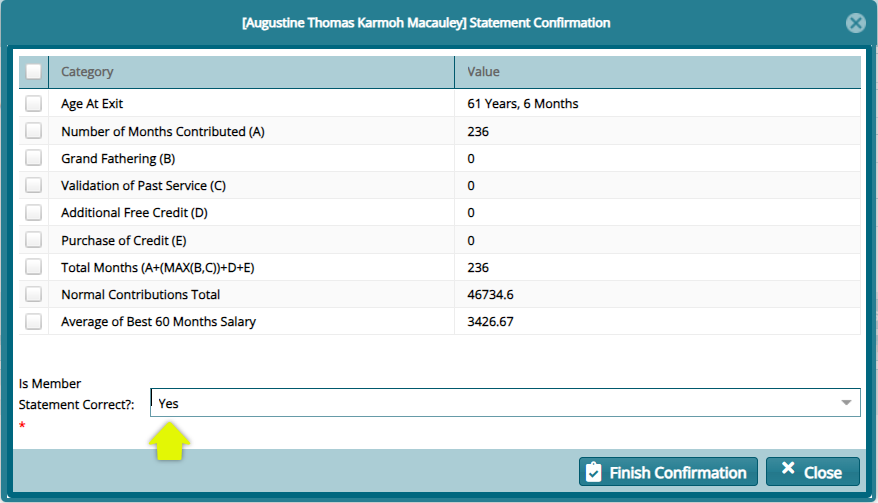
Clicking Validate Member Statement will open a dialog box showing a member's benefits details. Make sure to confirm the member statement by selecting Yes as shown below:
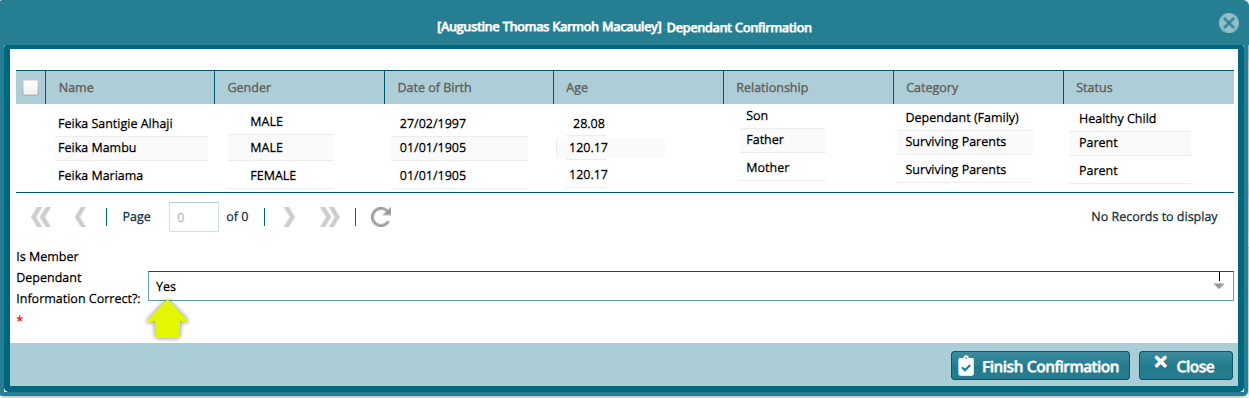
Clicking Validate Member Beneficiary Statement Information will open a dialog box showing a member's nominated beneficiaries. Make sure to confirm the member statement by selecting Yes as shown below:
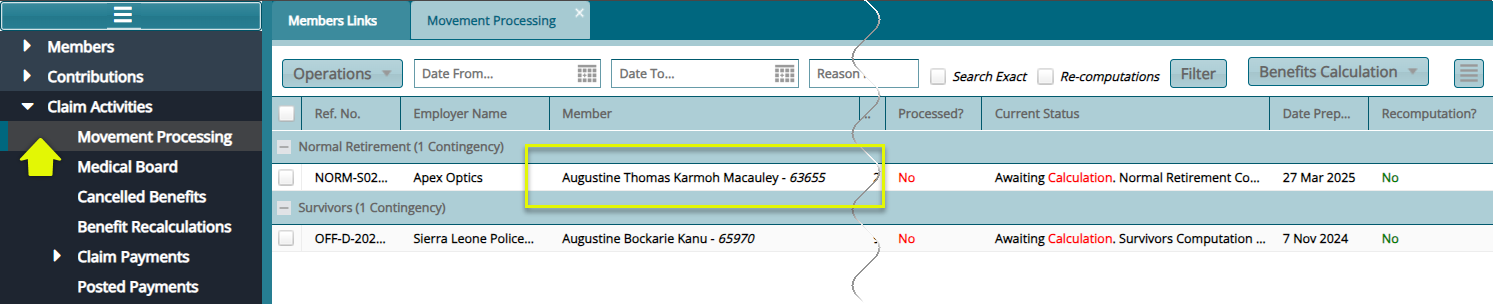
After a successful initialization of a claim, the claim record is pushed to the Movements processing window. See screenshot below:
Step 3: Benefits Calculation
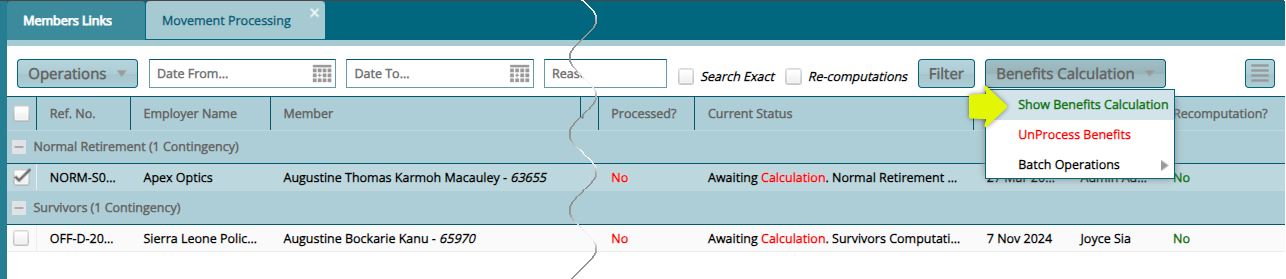
From the same Movement Processing window locate the Benefits Calculation menu and from the drop-down, click Show Benefits Calculation menu item as shown below:
Clicking the Show Benefits Calculation link will open the Benefits Calculation form showing the member's benefits tabulations as shown in the screenshot below:
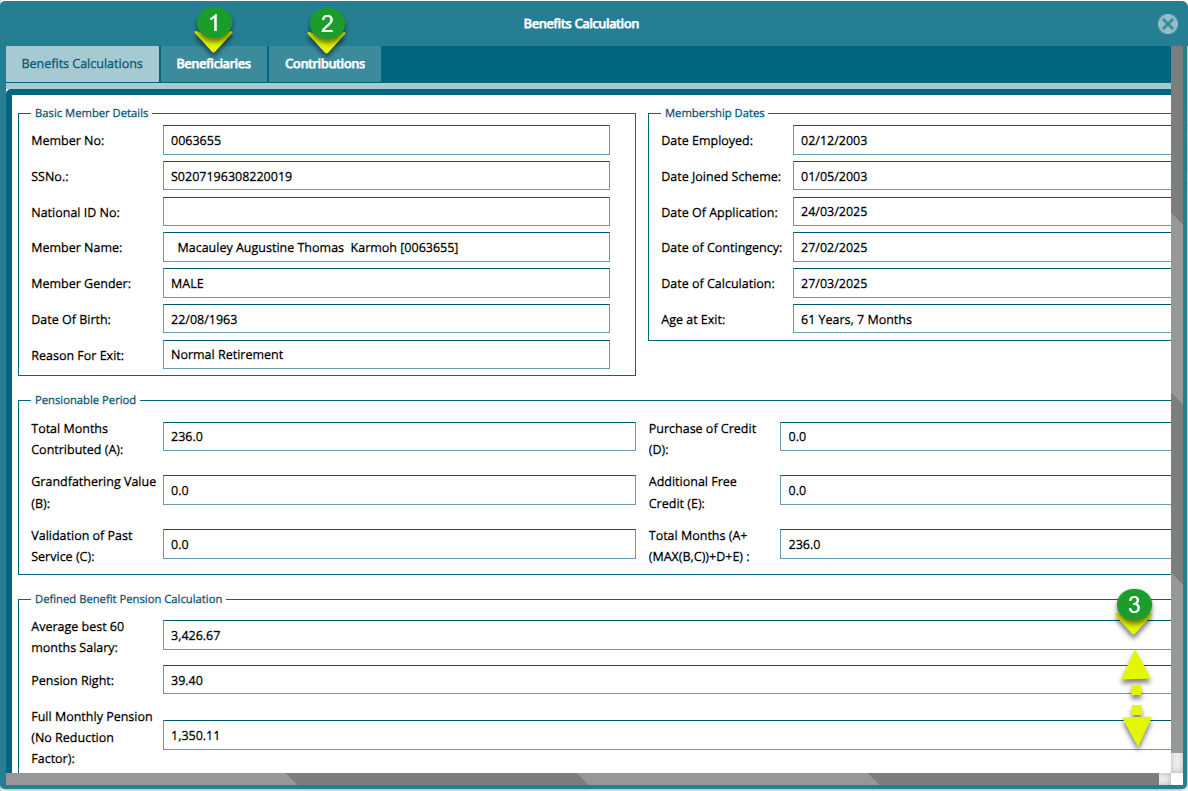

Action
Click label 1 button to view the member's nominated beneficiaries.
Click label 2 button to view the member's contribution tabulations.
Click label 3 button area to scroll down the form to view other details.
Click label 4 button to move on to the next step of benefits calculation.
Click label 5 button to download a copy of the members pension arrears in MS Excel format.
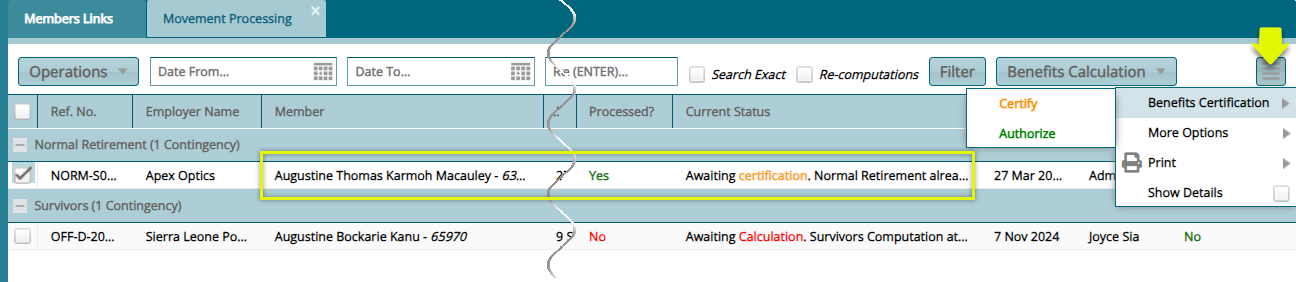
Clicking the Proceed Now button will confirm the calculation of the members benefits. Check the members Current Status from the Movement Processing window to see the next step that awaits in the process. As seen in the following screenshot then members status has changed to Awaiting Certification.... Locate the Benefits Certification menu and from the drop-down click to Certify and Authorize the process:
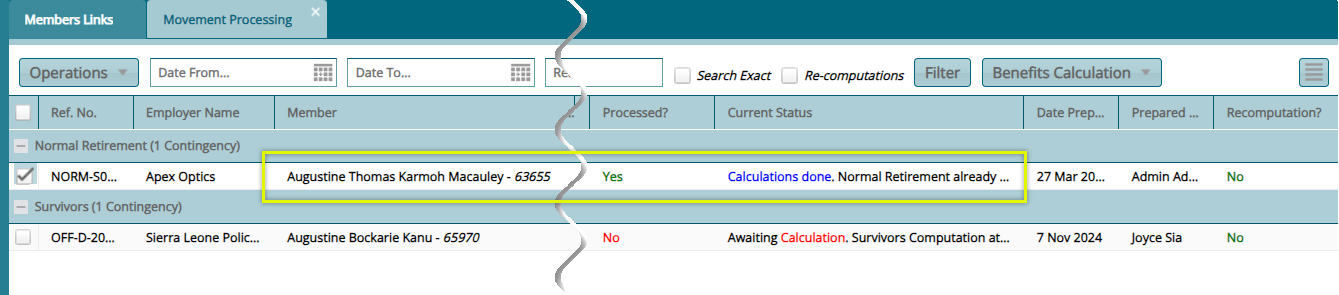
After the Certification is completed, the record status in the Movement Processing window will turn from Awaiting Certification to Calculation done as shown in the screenshot below:
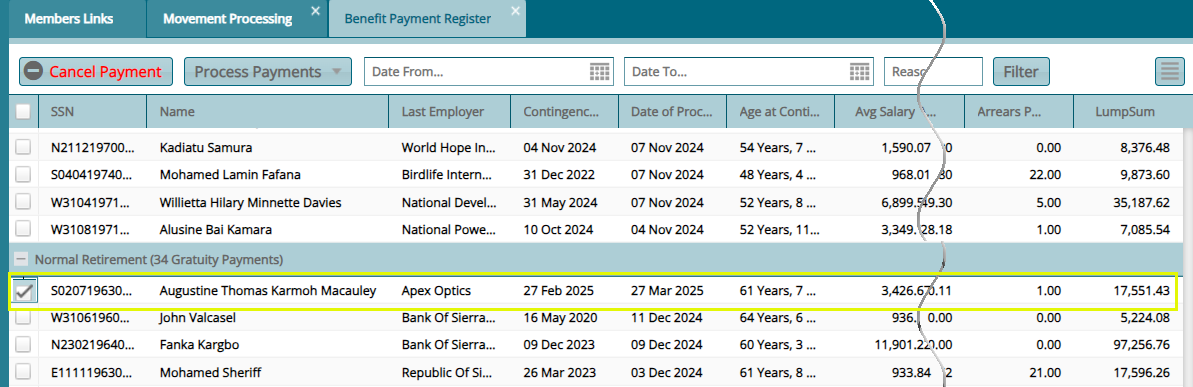
At this point this transaction will be listed in the Benefits payments Register since this member qualifies for a lump sum and pension payment. See screenshot below:
Note: The demonstrated claim processing steps apply to other Reasons for Exit, such as Early Retirement, Invalidity, and others.
Death Claim Processing
In case of a death in service the benefits of the members need to be processed for payment to be made to his/her family. This section demonstrates how to process a death claim.
Step 1: Death Claim Initiating Process
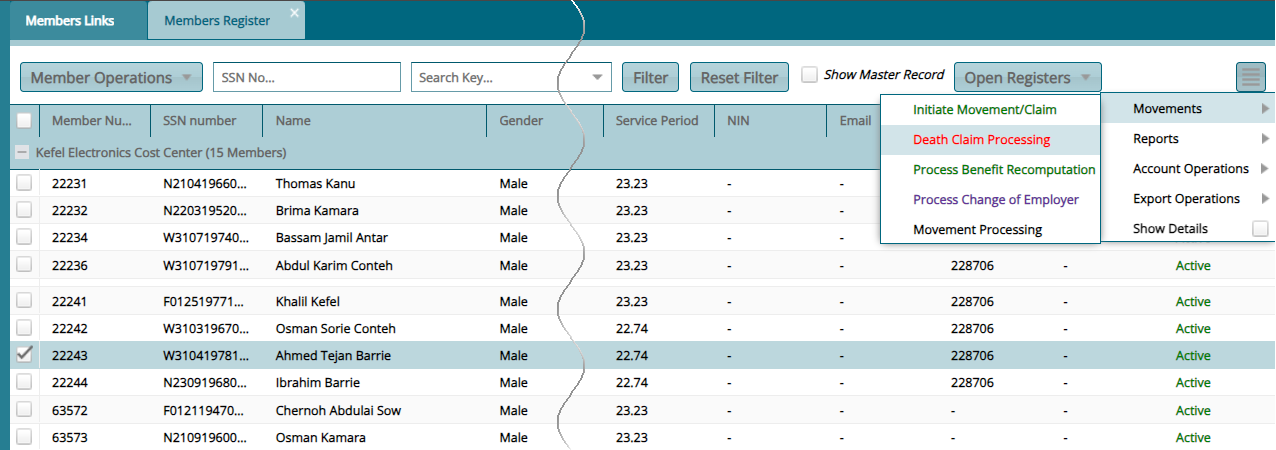
To process a death claim, select the member from the Members Register and locate the Movements menu and from the drop-down menu, click Death Claim Processing as shown below:
Step 2: Selecting Reason for Exit
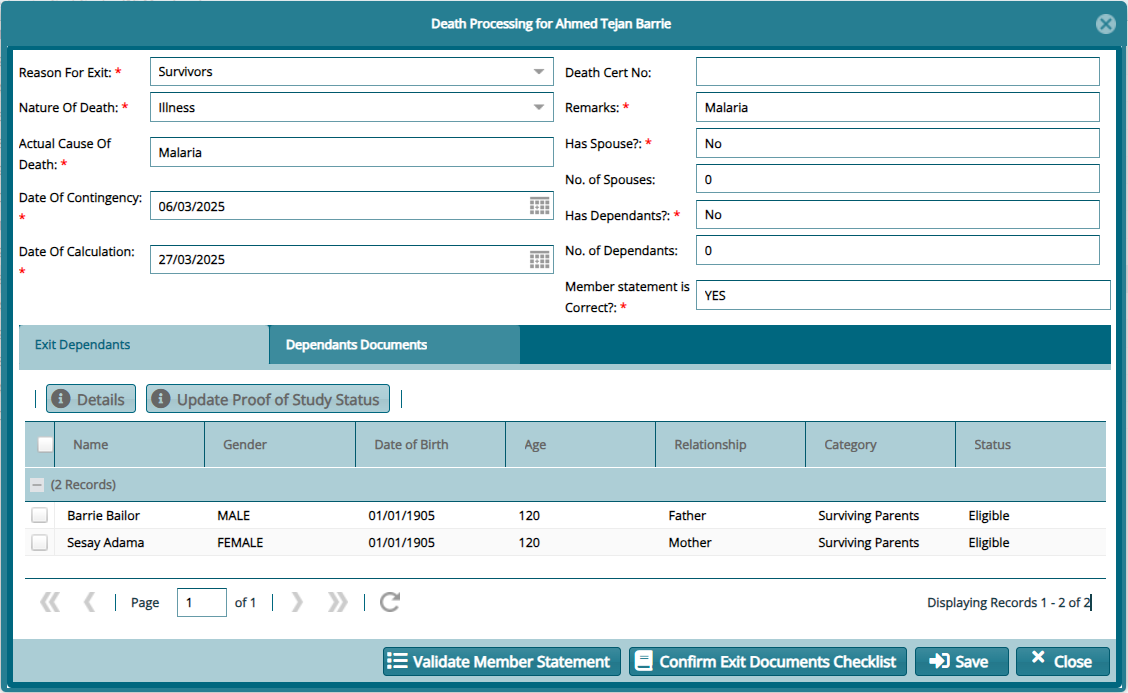
Clicking the Death Claim Processing link will load an exit form where parameters for processing the claims are set. Set the Reason for Exit among other details as shown below:
Step 3: Benefits Calculation
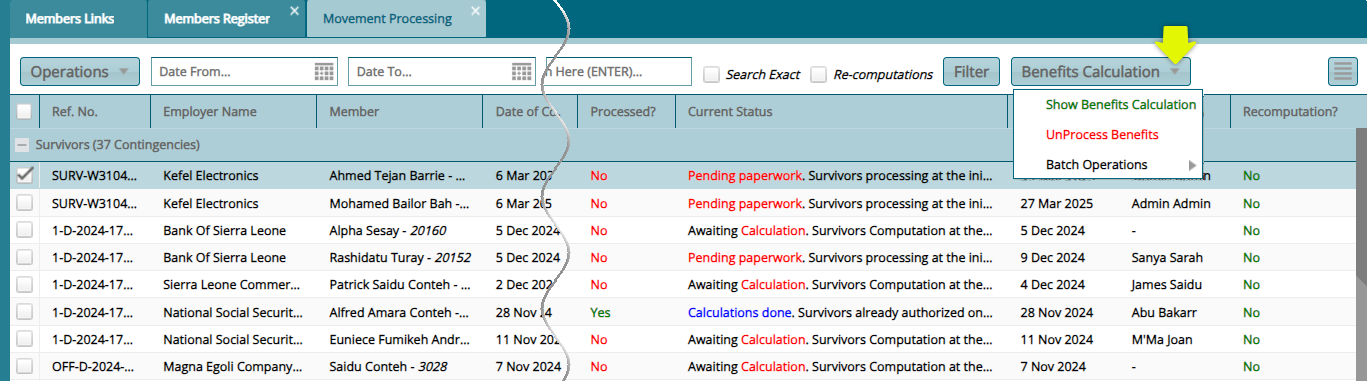
Navigate to the Movement Processing window and locate the Benefits Calculation menu and from the drop-down, click Show Benefits Calculation menu item as shown below:
# MSS Benefits
The Mss Benefits register shows all the claims initiated from the MSS Portal. See screenshot below:

# Purchase of Credit
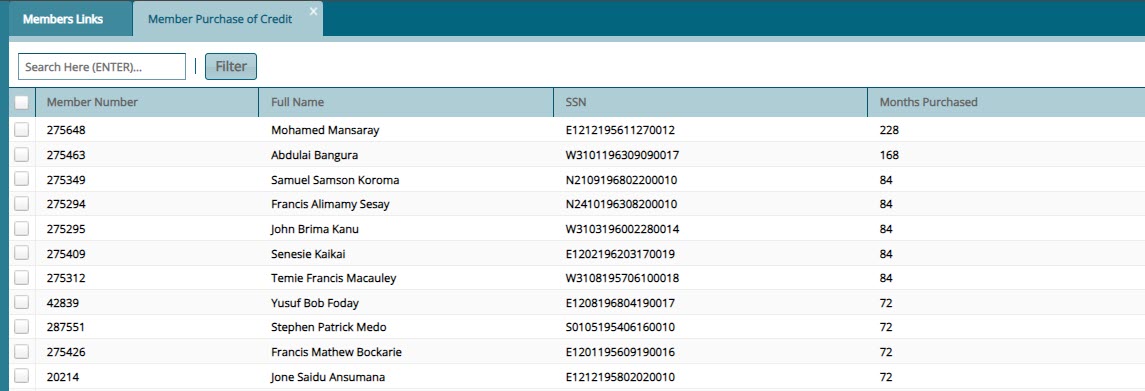
The Purchase of Credit register shows all the members with purchased credits. See screenshot below: