# Admin Panel
The menu items under the Admin Panel menu allow access to registers such as the processes register and task instances, historic workflows and other parameters. Click the links to open their respective windows as shown below:

# Process Register
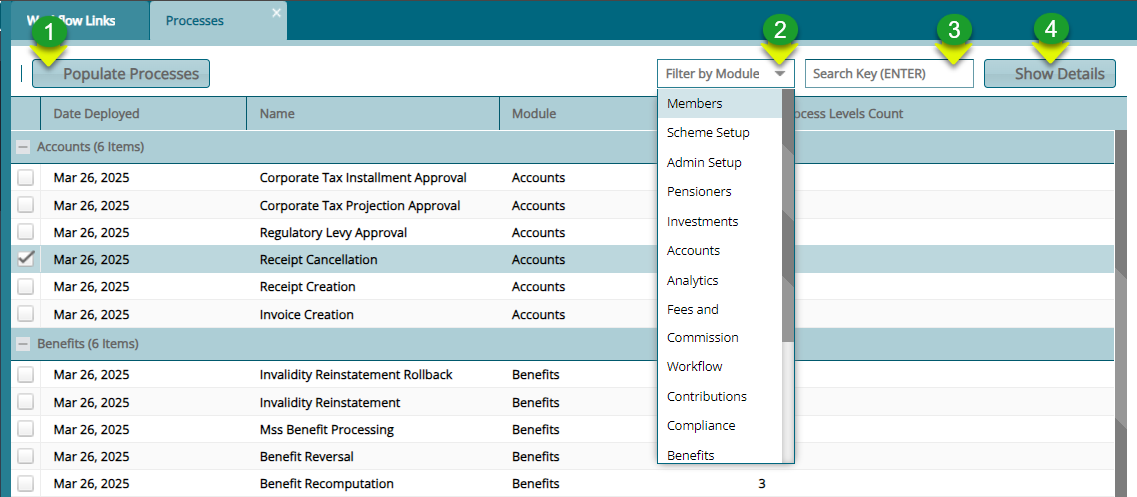
Click the Process Register link to open the Processes window where the details for all processes and their different tasks, assigned users, and other details are displayed in a grid table as shown below:
Action
Click Label 1 button to populate all the process that can be automated in the system.
Click Label 2 button and from the dropdown menu filter processes my module.
Click Label 3 text field to type the name of the process to filter the records.
Click Label 4 button to expand the window at the bottom to display a section showing the details of a selected process from the grid table.
Clicking the Show Details button will expand the window to display a section where mappings of processes to assigned to users and listing of sub processes are accessed as shown below:
<img alt="Show Details" width="95%" height="auto" class="center"
#src="../.vuepress/public/Workflow/image19.png">
# Mapping
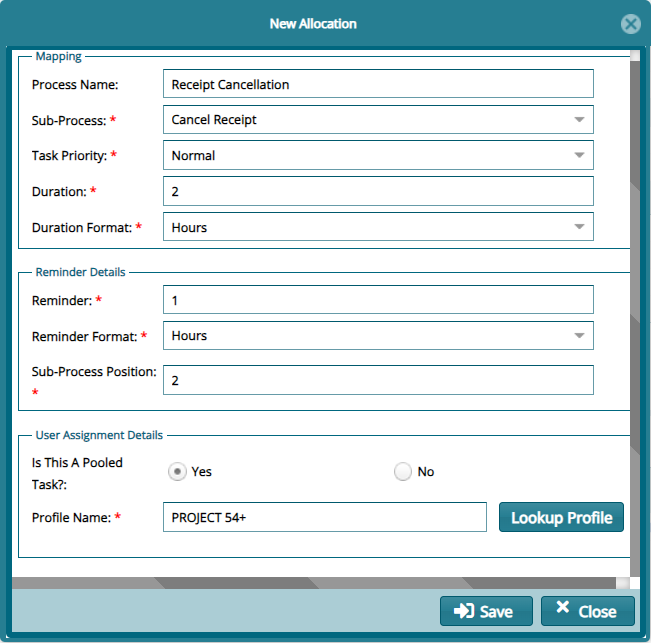
To map processes to assigned users click the New Allocation button from the Mappings tab to open a window where the configurations is done as shown below:
# Sub Processes
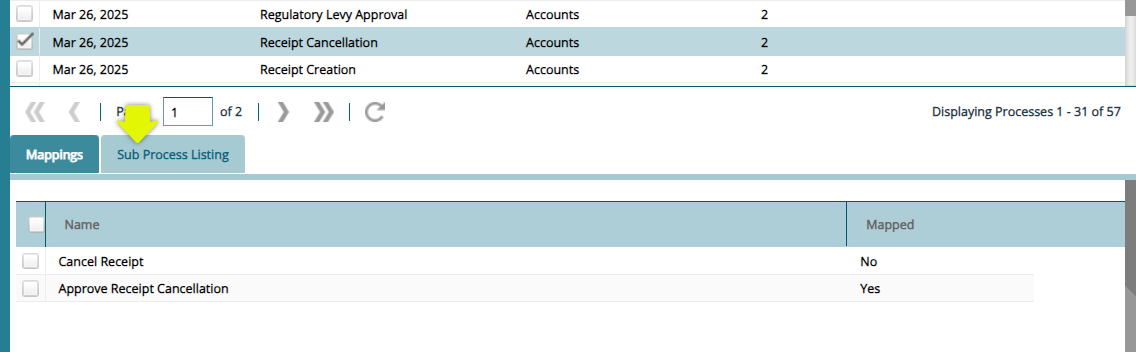
To view all the sub processes for a selected process, click the Sub Processes tab as shown below:
# Task Instances
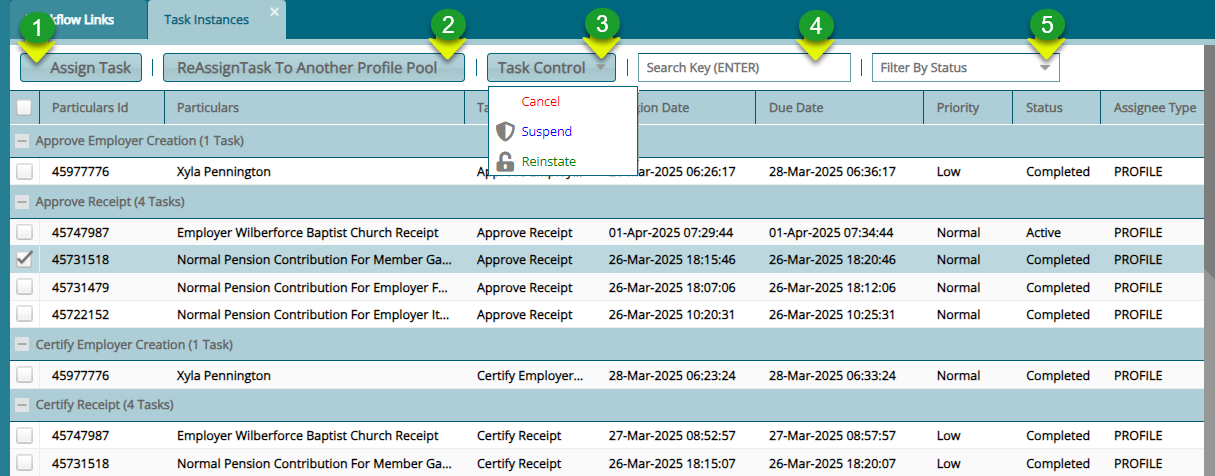
The Task Instances window display all the tasks that have been completed and those that are still active in the workflow engine. From this window certain actions such as assigning a task to a user can be executed. See the screenshot below:
Action
Click Label 1 button to assign a selected task to a user from a pool.
Click Label 2 button to reassign a task a different user.
Click Label 3 button and from the dropdown menu cancel, suspend or reinstate a task.
Click Label 4 text box and type word to filter records.
Click Label 5 button and from the dropdown menu selecta filed to filter records by task status.
# Historic Process Instances
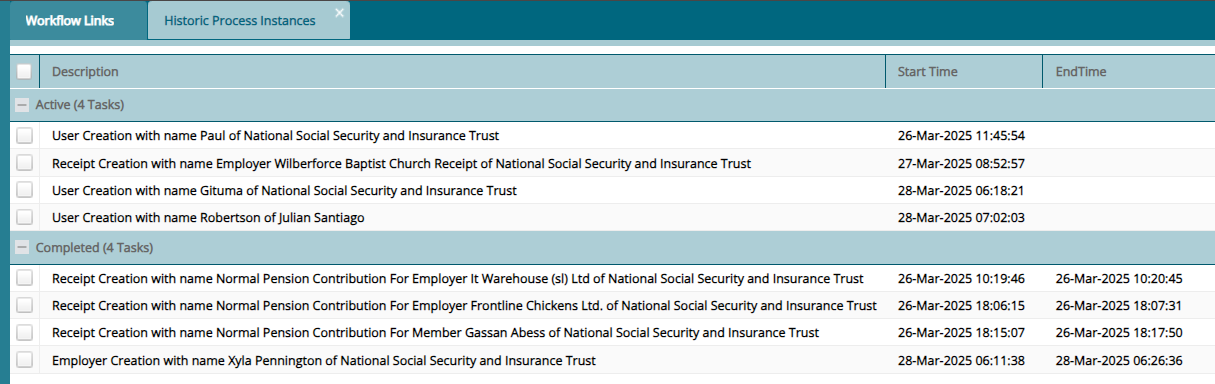
The Historic Process Instances window display all the task descriptions under two categories. Those that are active and those that have been completed. See the screenshot below
# Other Parameters
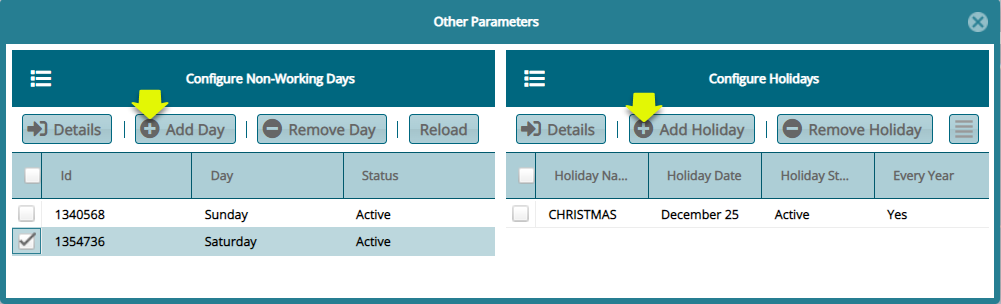
The Other Parameters window is where non-working days and holidays are configured in the system. This enables the workflow schedular to exclude these days in the allocation of tasks to days. To configure a Non-Working Day, click the Add Day button to open a dialog box to set the day and Add Holiday button to set a day as Holiday among other settings such as removing a set day as shown below:
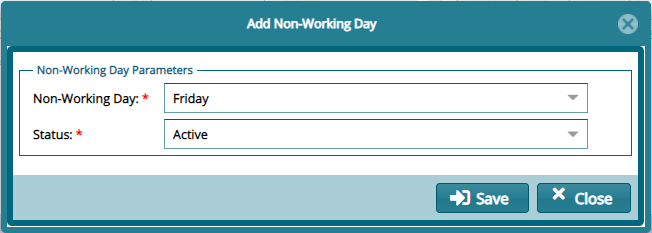
To configure a non-working day, click the Add Day button to open a dialog box for setting up the day as shown below:
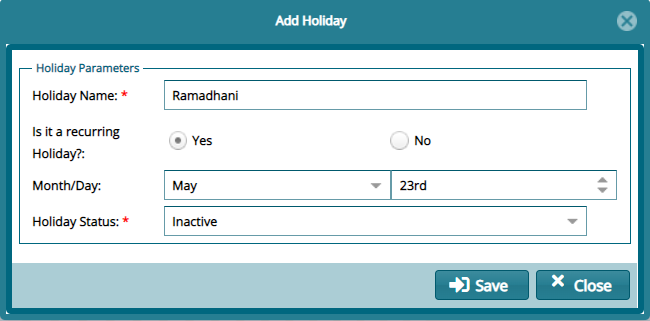
To configure a holiday, click the Add Holiday button to open a dialog box for setting up the day as shown below: