
# Task Management
The menu items under the Task Management menu allow access to the categorized task related windows where certain process tasks are executed from. Click the drop-down menu links to open respective windows as shown below:
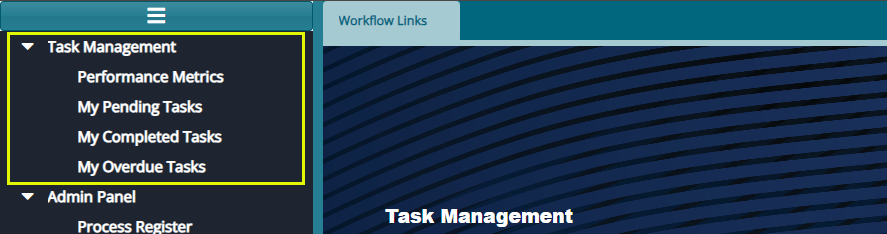
# Performance Metrics
Click the Performance Metrics link to open the Processes window where the details for all processes and their different tasks, assigned users, and other details are displayed in a grid table as shown below:
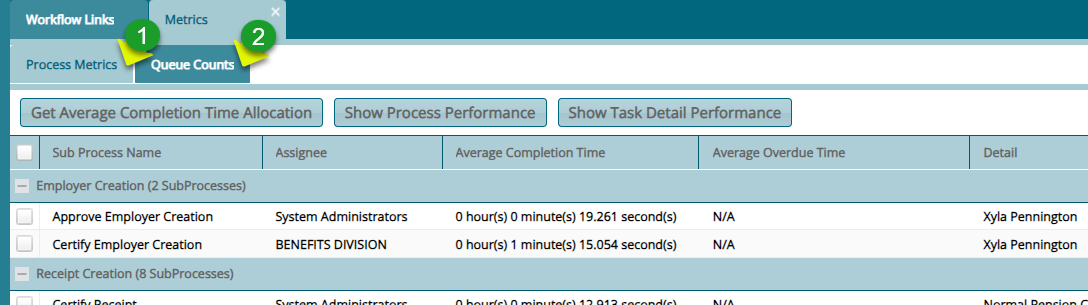
Action
Click Label 1 tab to view the performance details of different categories of system processes.
Click Label 2 tab to view the performance details of process categorized has high or low priority.
# Process Metrics
The Process Metrics help measure the efficiency, effectiveness, and performance of automated workflows. These metrics provide insights into how well processes are executed. The metric can give insights into identification of bottlenecks and ensure optimal resource utilization. See screenshot below:
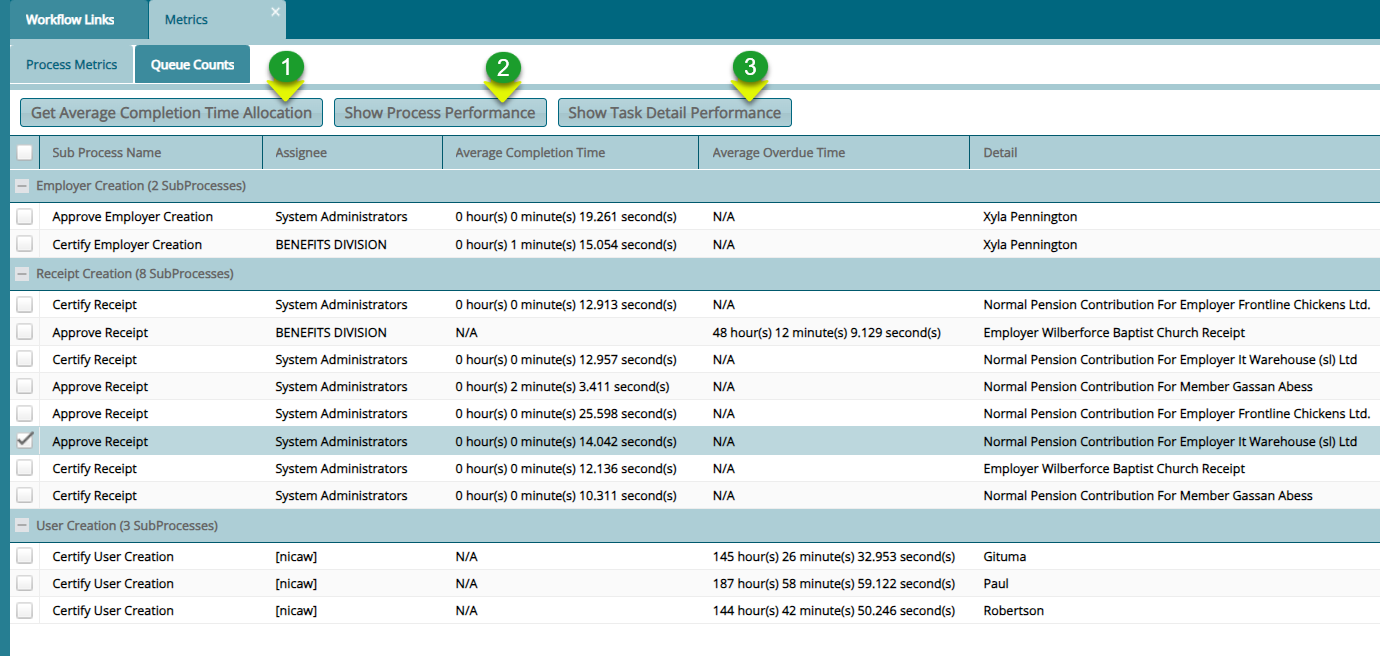
Action
Click Label 1 button to view the average completion time of a selected sub process.
Click Label 2 button to view the performance of a selected process e.g. the receipt creation process
Click Label 3 button to view the performance details of all tasks under a process.
# Average Completion Time
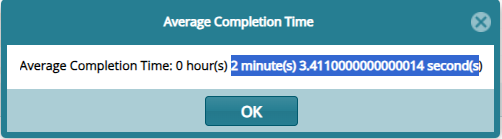
Clicking the Get Average Completion Time Allocation button will open a window showing the average time taken to complete the selected sub process. See sample screenshot below:
# Process Performance
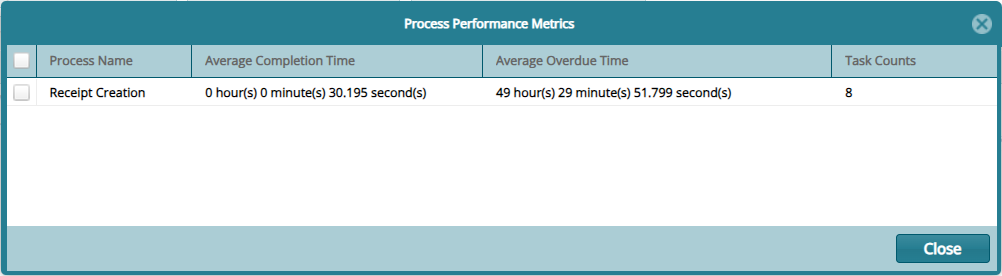
Clicking the Process Performance button will open a window showing the process performance e.g. the average time taken to complete the process. See sample screenshot below:
# Task Detail Performance
Clicking the Show Task Performance button will open a window showing the description of tasks performed and their performance e.g. the average time taken to complete a specific task. See sample screenshot below:
# Queue Count
The Queue Count help measure the performance of tasks under the group of those viewed to be of high or low priority. See screenshot below:
Action
Click Label 1 button to open a window showing all tasks and their priority.
Label 2 section tabulated all the performances.
Label 3 section shows a chart visualizing the tasks performance.
# Tasks Priority
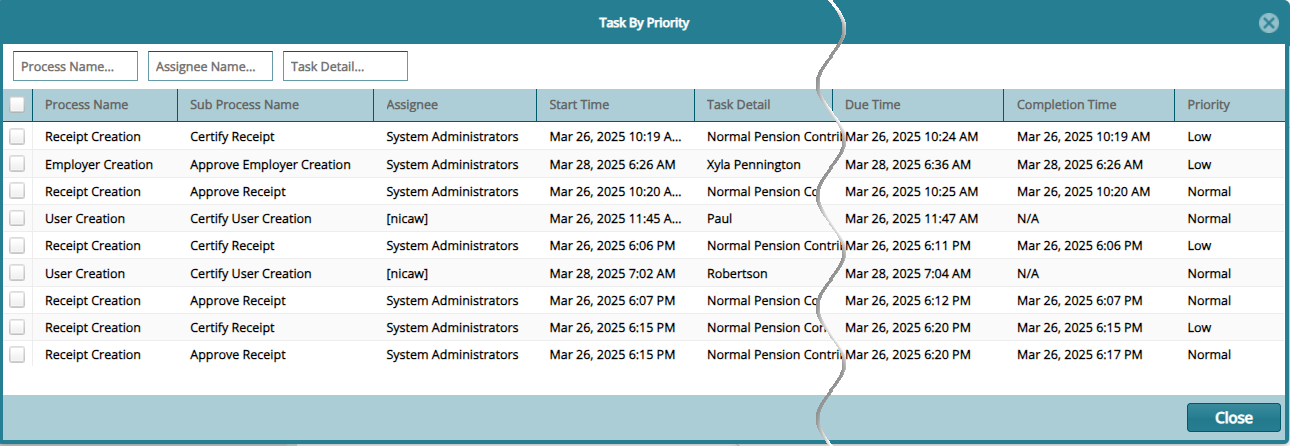
Clicking the Get Tasks by Selected Priority button will open a window showing all the tasks and their priority among other details. See sample screenshot below:
# My Pending Tasks
Clicking the My Pending Tasks menu item will open the Personal Tasks window where the details for all tasks assigned to the current system user are listed as shown below:

# My Completed Tasks
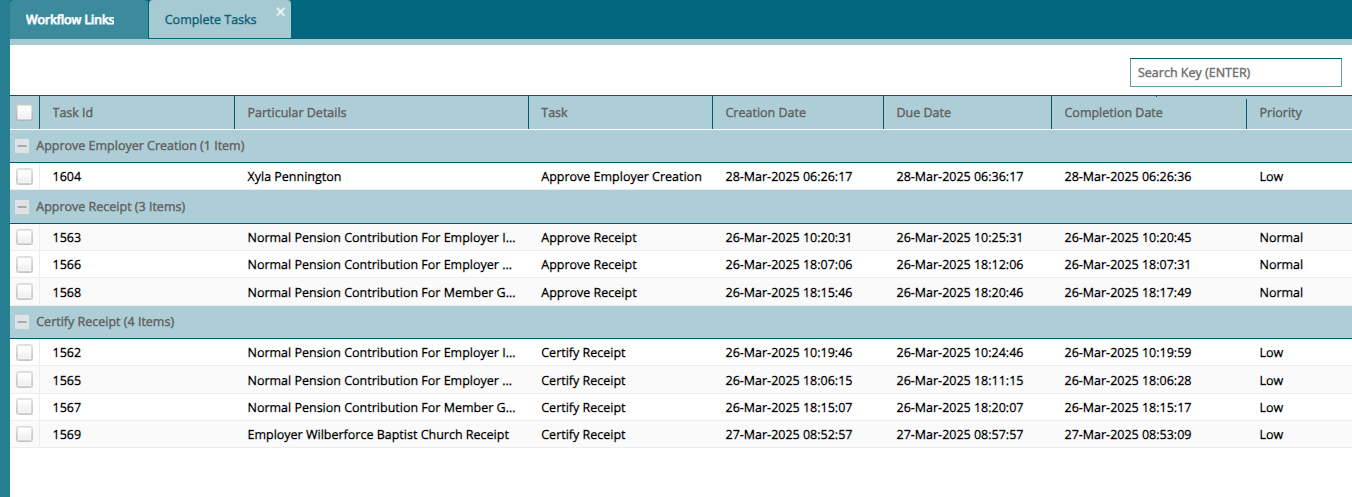
Clicking My Completed Tasks menu item will open the Completed Tasks window where the details for all tasks assigned and already completed by the current system user are listed as shown below:
# My Overdue Tasks
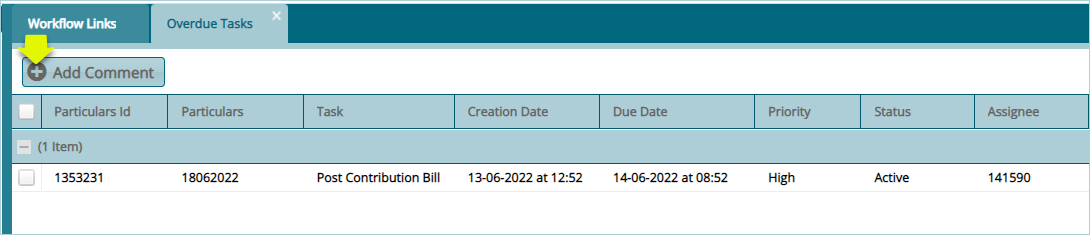
Clicking My Overdue Tasks menu item will open the Overdue Tasks window where the uncompleted tasks assigned to the current user are listed as shown below:
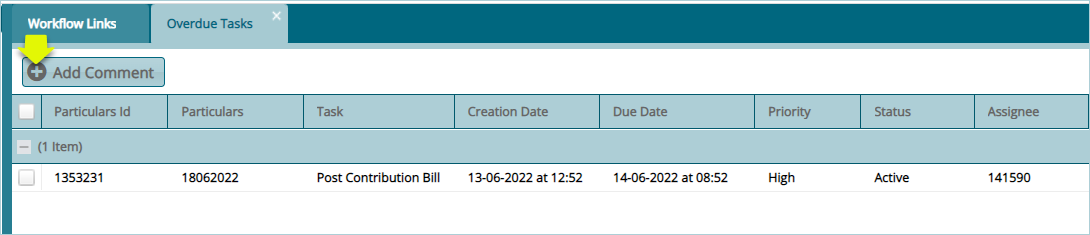
Click the Add Comment button to write a comment related to a selected task from the list.