# Other Setup
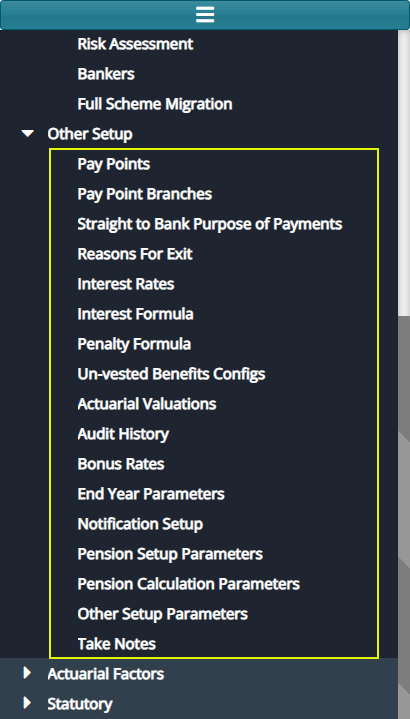
Configurations under 'Other Setup' menu enable formulation of interests, penalties, setting up pay points, actuarial valuations, among others. The screenshot below shows a drop-down menu where various links are located:
# Pay Points
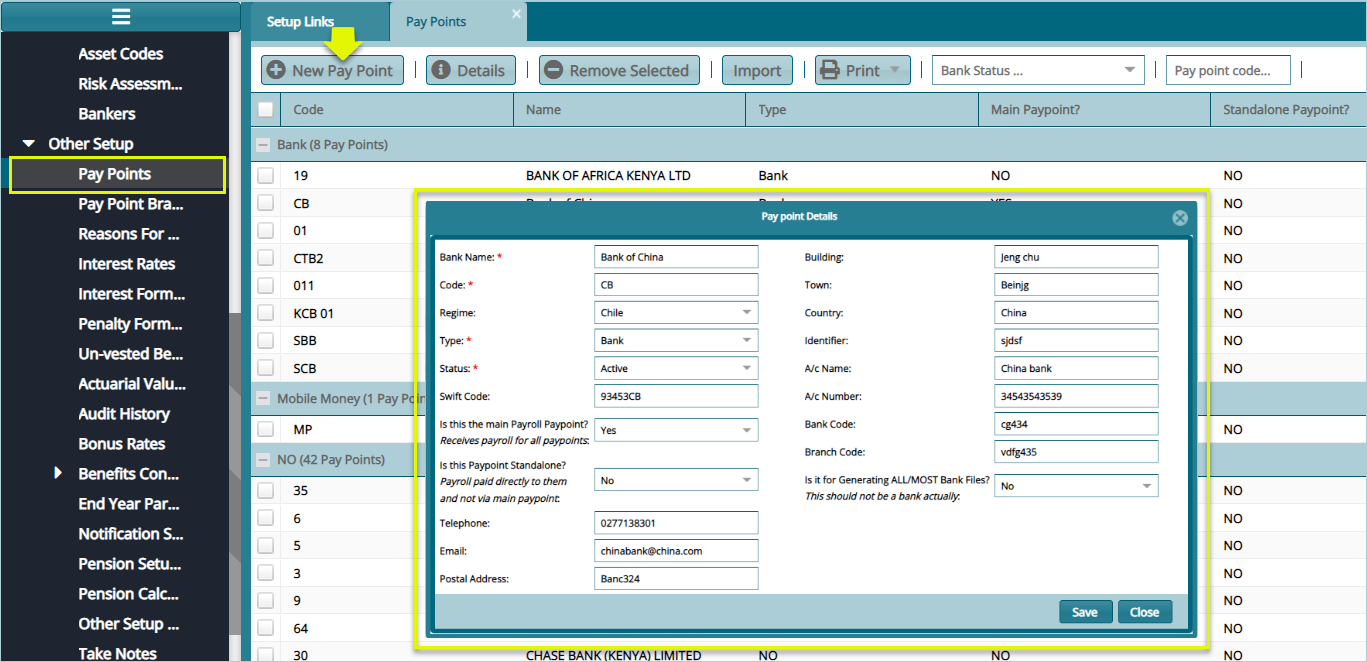
Click the 'Pay Points' link to open a Pay Points window and then click the 'New Pay Point' button to capture details for a new pay point as shown below:
# Pay Point Branches
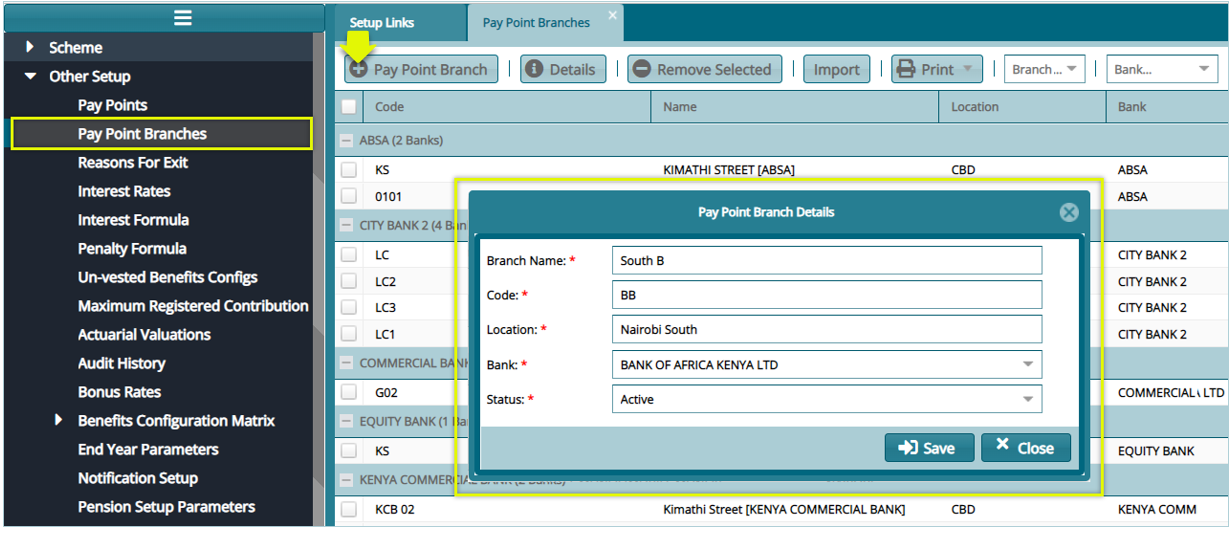
Click the 'Pay Points Branches' link to open a pay point branches window and then click the 'Pay Point Branch' button to capture details for a new pay point branch as shown below:
# Straight to Bank
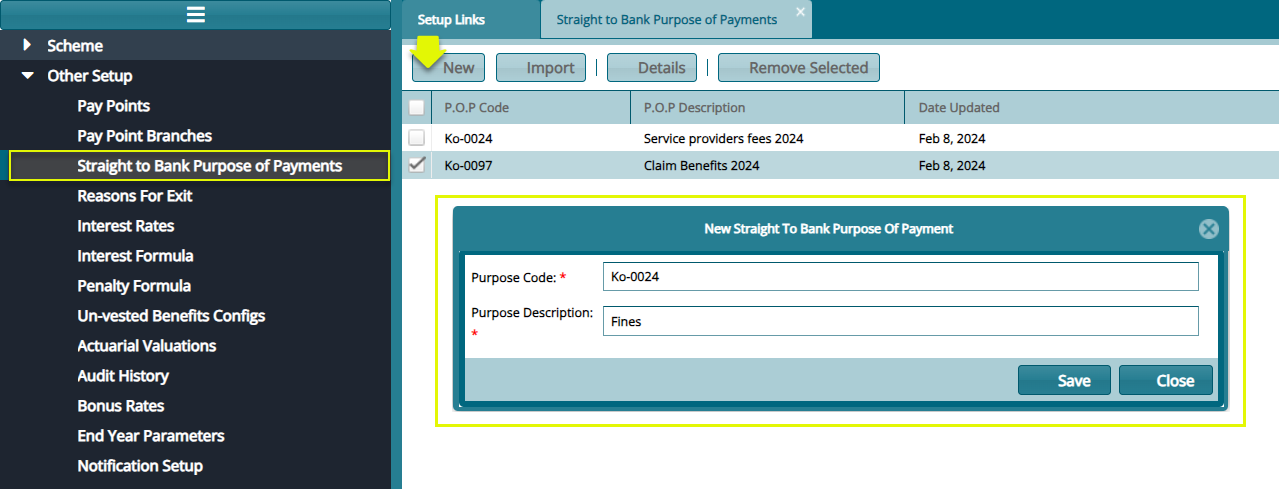
Click the 'Straight to Bank Purpose of Payments' link to open a dialog box for capturing the purpose of a straight to bank type of payment. See the screenshot below:
# Reasons for Exit
Click the 'Reasons for Exit' link to open the Reasons for Exit window where a grid table displays the various reasons for exit configurations. See the screenshot below:
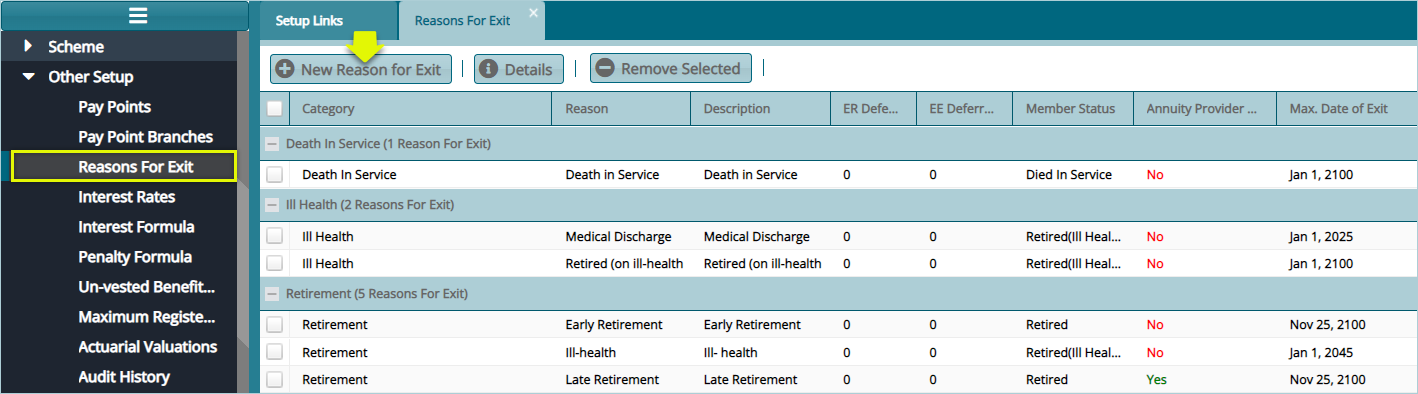
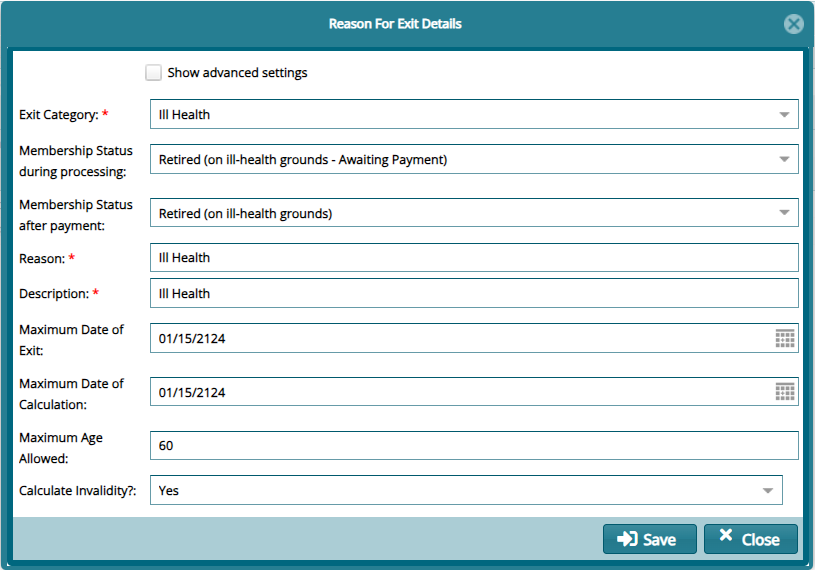
Click the 'New Reason for Exit' button to open a dialog box through which a new exit reason is configured as shown below:
# Interest Rates
Click the 'Interest Rates' menu item to open the Interest Rates window to view the details of rates already configured in the scheme as shown below:
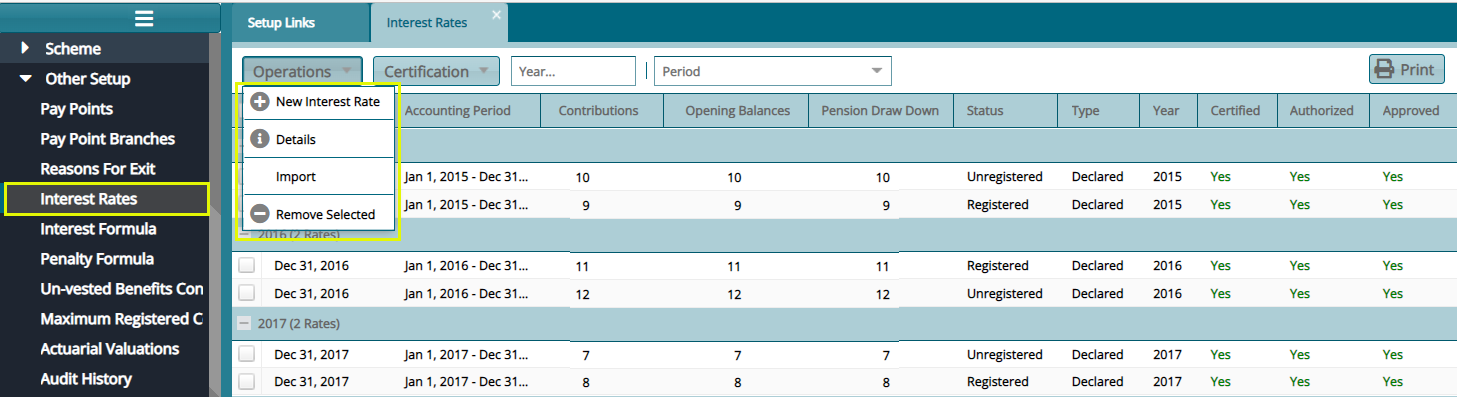
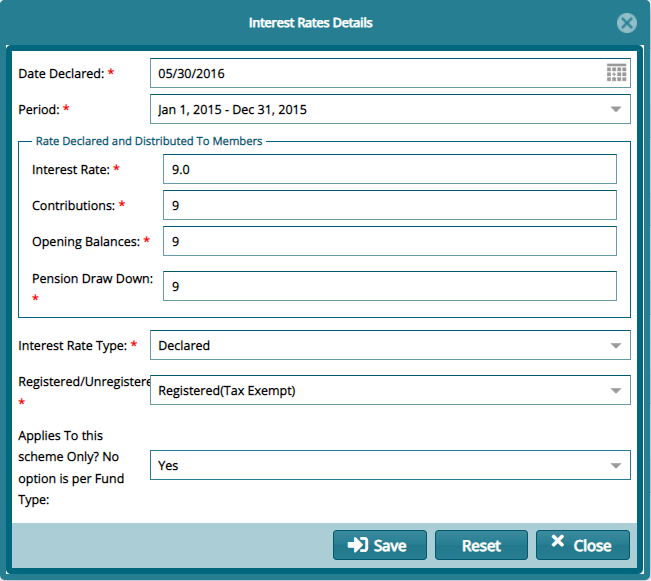
Click the 'New Interest Rate' link from the 'Operations' drop-down menu as shown in the previous screenshot to open a dialog box through which a new interest rate can be defined as shown below:
# Interest Formula
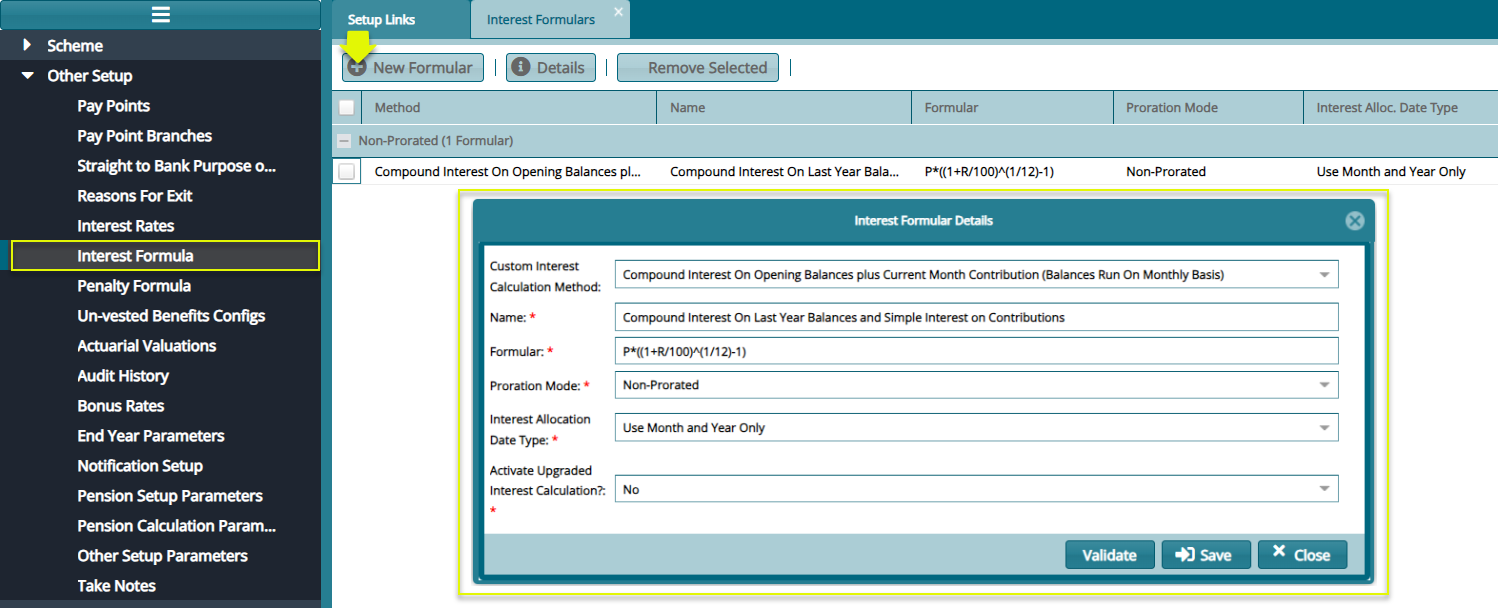
Click the 'Interest Formula' link to open the interest formula window, then click the 'New Formular' button to create a formula as shown below:
# Unvested Benefits configs
# Actuarial valuation
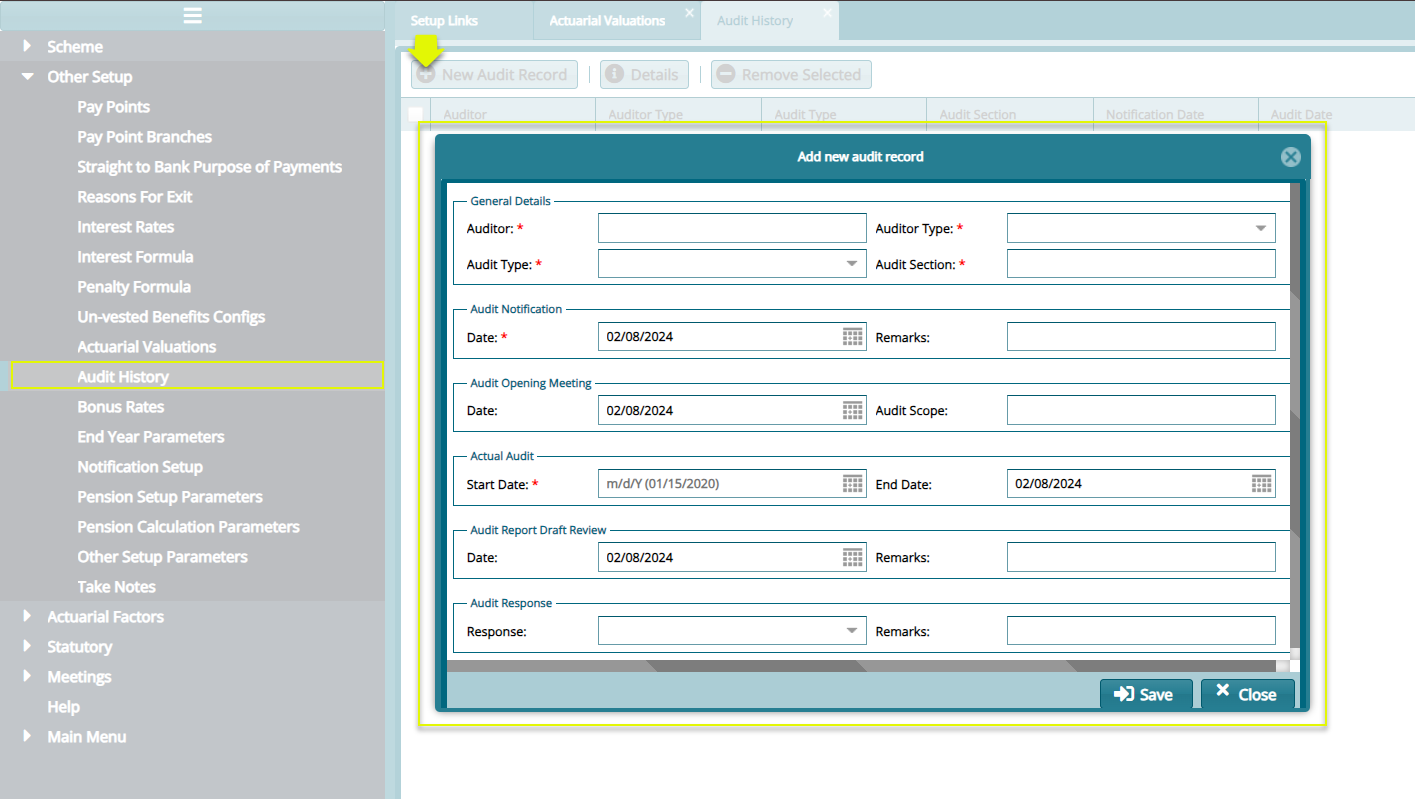
# Audit History
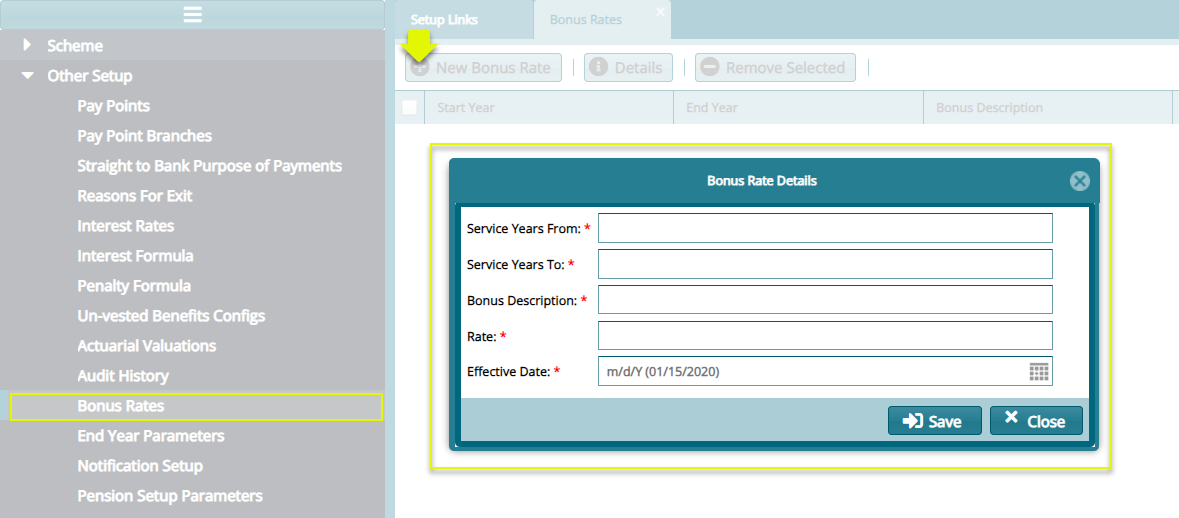
# Bonas Rates
# End of Year Parameters
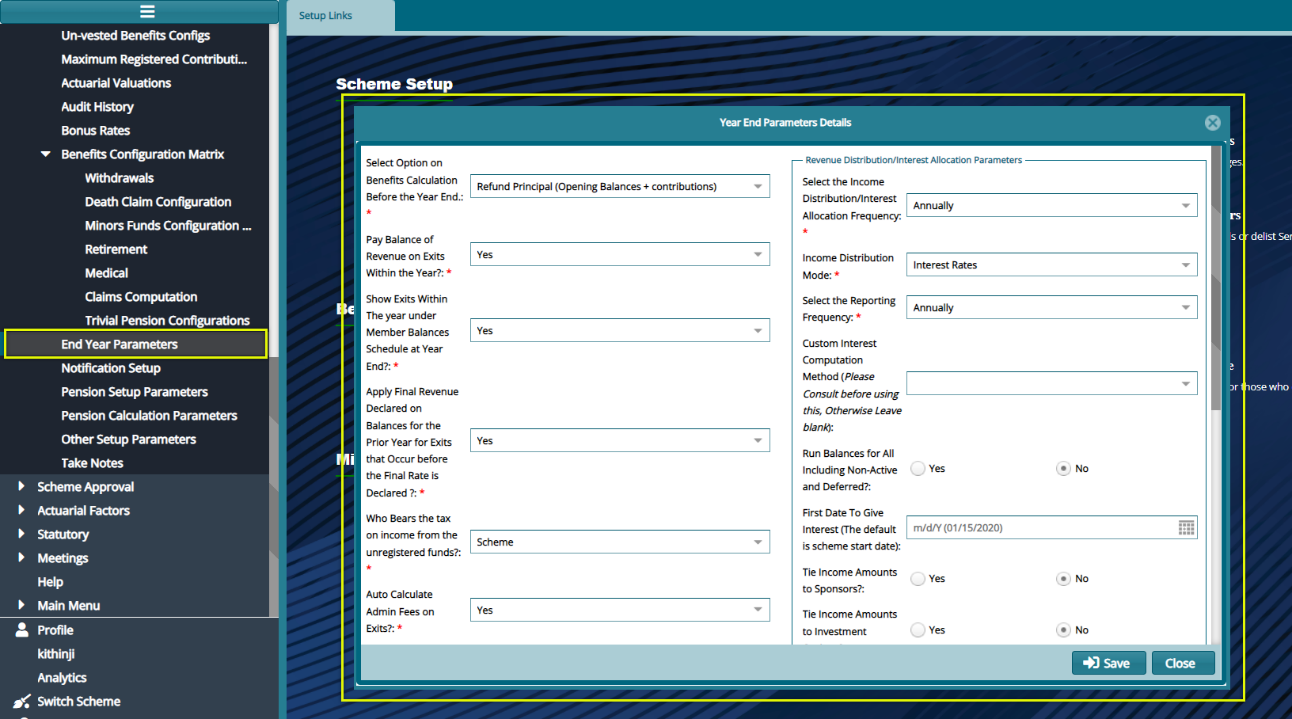
This set of configurations determine the benefits calculation method for end of the defined financial year i.e., interim and declared rates of interest. Interest allocation frequency and distribution mode are other important parameters set here.
Click the End Year Parameters link to open the Year-End Parameters Details dialog box and configure the details as shown in the sample screenshot below:
Parameter Description
Select option on withdrawal benefit calculation before the year-end: on the drop-down menu select provisional rate of interest, lock benefits in the scheme year-end, or refund principal (opening balances + Contributions)
Show withdrawals within the year under the member balances schedule at year-end? Specify whether to show withdrawals within the year under the member balances end-of-year schedule.
Who bears the tax on income from the unregistered funds? Specify who bears the taxation on the unregistered fund's portion, the scheme, or individual members.
Auto calculates administration fees on withdrawals? Specify whether the administration fees must be auto calculated for the administration services.
Treat tax from the unregistered scheme as an expense? Specify whether the tax on the unregistered portion must be treated as an expense.
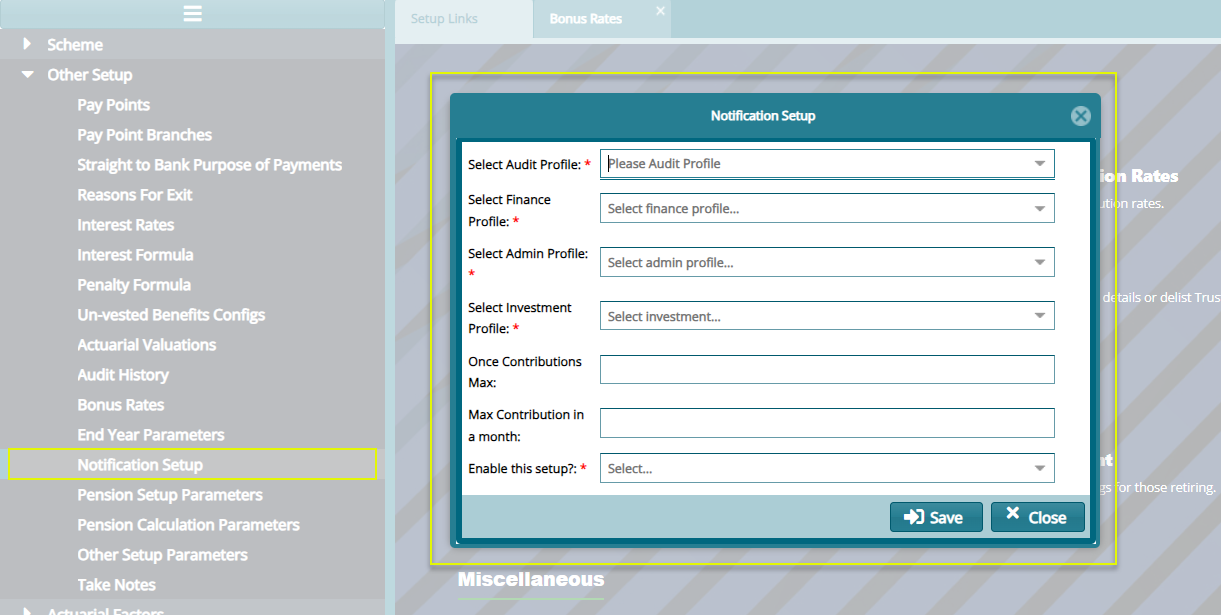
# Notification Setup
# Pension Setup Parameters
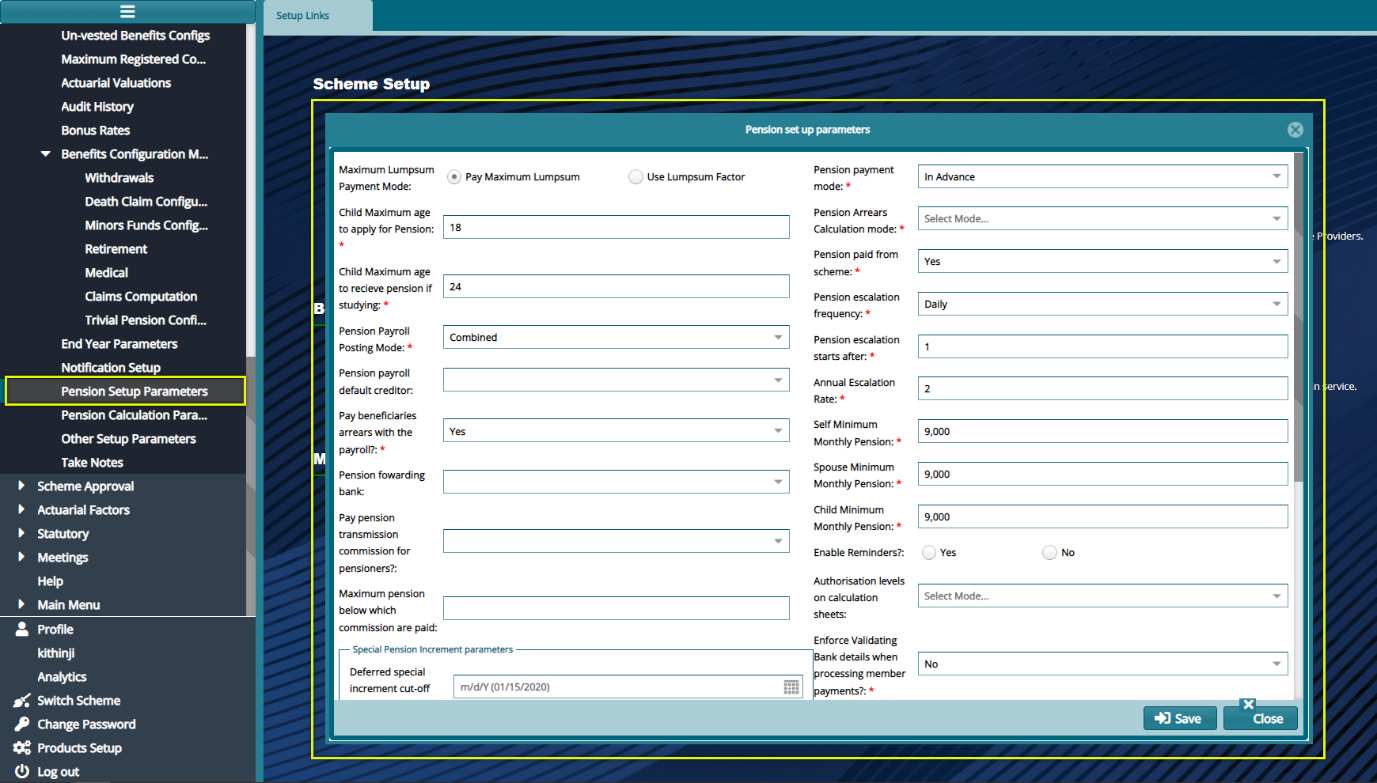
Click the 'Pension Setup Parameters' link to open the Pension Setup Parameters dialog window and set the configurations as shown in the screenshot below:
# Pension Calculation Parameters
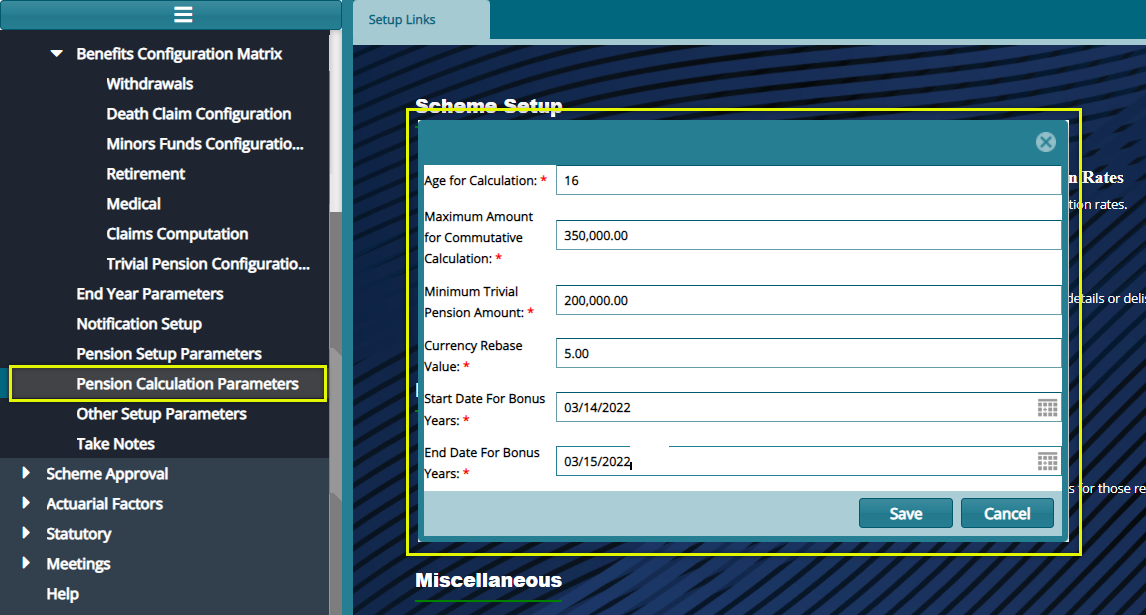
Click the 'Pension Calculation Parameters' link to open a dialog window and set the configurations as shown in the screenshot below:
# Other Pension Parameters
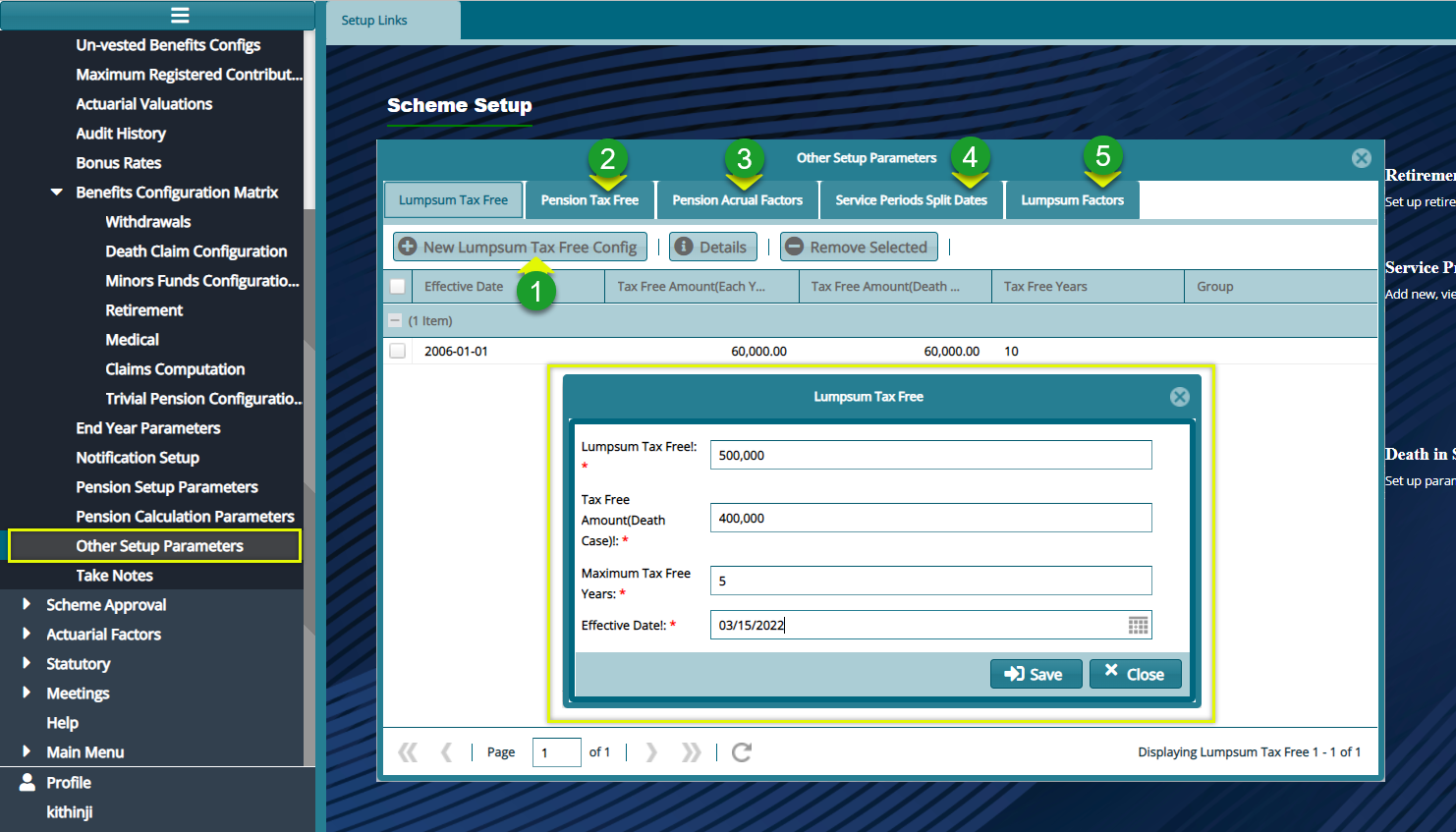
Click the 'Other Pension Parameters' link to open a dialog window and set the configurations for Lumpsum Tax-Free and other related items as shown in the screenshot below:
Action
Click label 1 button to load a dialog box and set a new Lumpsum Tax Free configuration as shown above.
Click label 2 button to open a dialog box and set a new Pension Tax Free configuration.
Click label 3 button to open a dialog box and set a new Pension Accrual Factor configuration.
Click label 4 button to open a dialog box and set a new Pension Service Periods Split Dates configuration.
Click label 5 button to open a dialog box and set a new Lumpsum Tax Free configuration.
# Take Notes
The 'Take Notes' tool aids the system users to take some notes and save them. To see the notes already written and capture new notes.
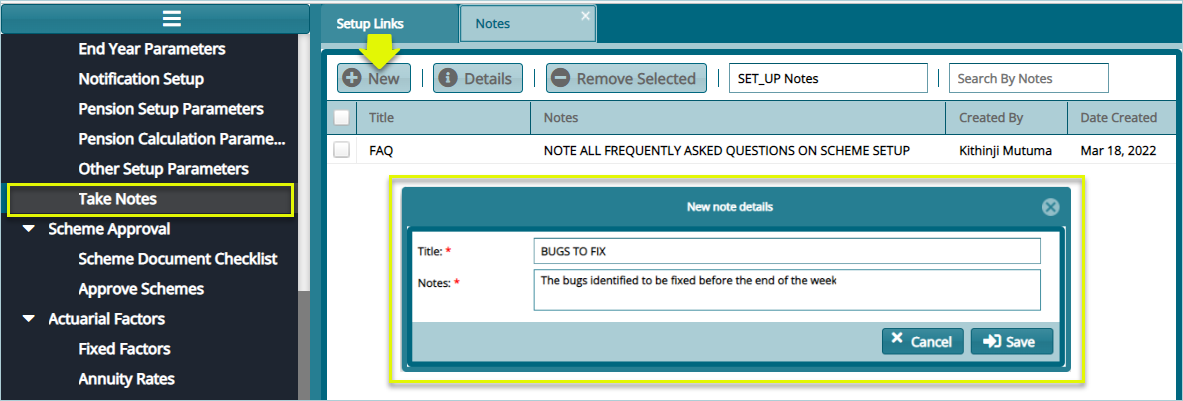
Click the 'Take Notes' link to open the Notes window. From this window locate and then click the 'New' button to load a new dialog box and type new notes as shown below: